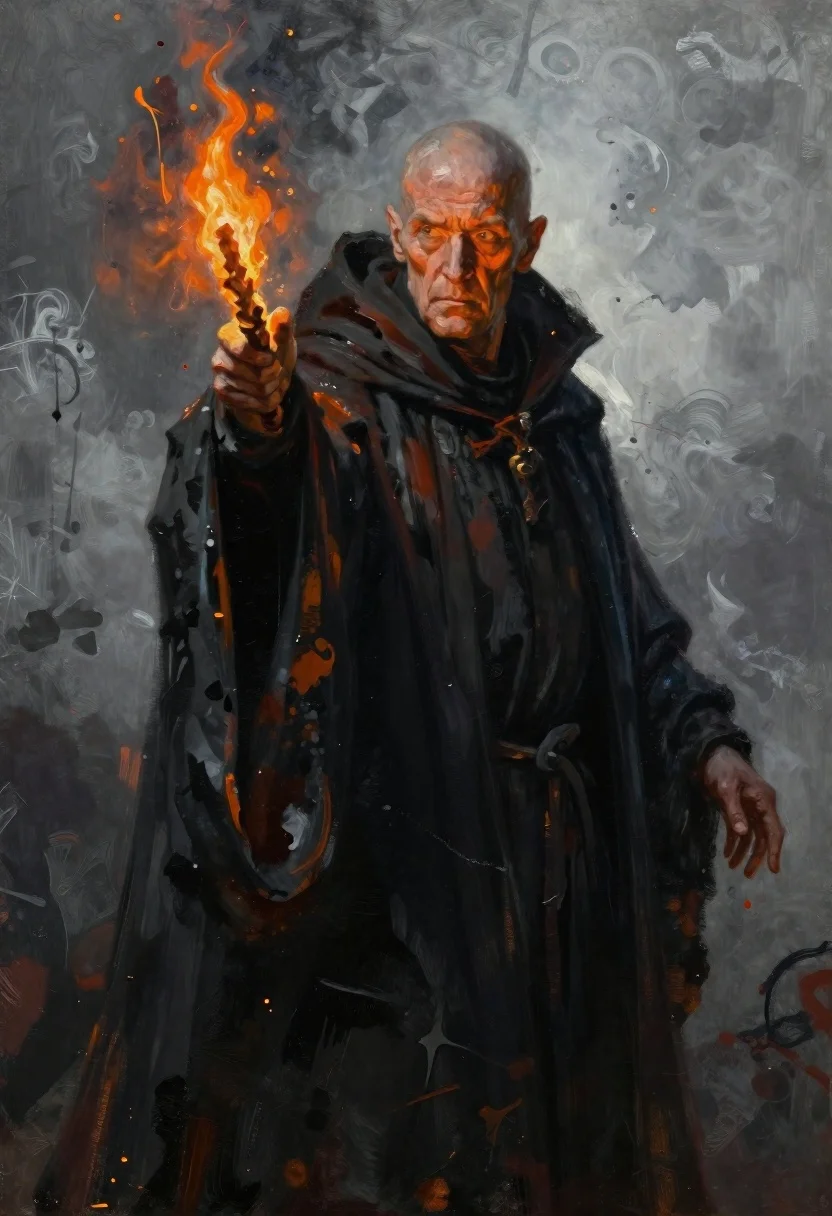
Dark wizard pointing with flaming staff against smoky background
Prompt
Oil painting of a dramatic dark wizard pointing forward with intense focus and determination

Subject: an elderly bald man with deep wrinkles and furrowed brows, pale skin contrasting sharply against shadows

Clothing: heavy textured black robes layered over simpler garments, high collar framing the face, rough fabric folds catching dim light

Action: right hand thrusts forward holding a flaming wand or staff casting bright orange firelight across his palm and sleeve, left arm lowered loosely at side with fingers slightly curled

Environment: abstract smoky background rendered in cool grays and whites with splattered ink-like marks suggesting magical energy release around him

Lighting: harsh directional illumination from the burning object creates strong chiaroscuro effect highlighting facial contours while plunging robe depths into shadow, warm glow reflecting on skin edges

Style Details: expressive painterly brushstrokes visible throughout especially in smoke and fabric areas combining realistic anatomy with fantasy atmosphere reminiscent of classic dark art styles.
Description
This prompt is useful for creating dramatic character concept art, book cover illustrations for epic fantasy novels, and moody digital painting showcases. The combination of 'harsh directional illumination from the burning object' establishing a strong chiaroscuro effect against the 'abstract smoky background' ensures that the wizard's intense focus remains visible by carving out highlights on his face and robes.
Suggestions
- Change 'flaming wand or staff' to 'glowing crystal orb' for a different light source.
- Swap 'cool grays and whites' in the environment for 'deep violets and blacks' to increase moodiness.
- Adjust 'Oil painting' to 'digital concept art' if you want less visible brushwork.
Category
Tags
Black HairFull BodyMalePortrait ShotRealisticStudio
Date added
June 19, 2026
Added by
PromptDexter Team
Related Prompts
More prompts with similar categories and tags.
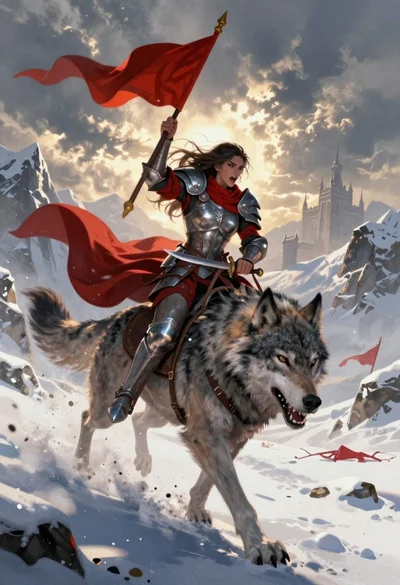
Warrior woman riding wolf through snowy mountains
Warrior portrait with ornate metallic armor and plume
Stylized portrait of man with afro beard in black and white with
Regal woman portrait in profile on black background
Portrait of a witch in black corset and hat
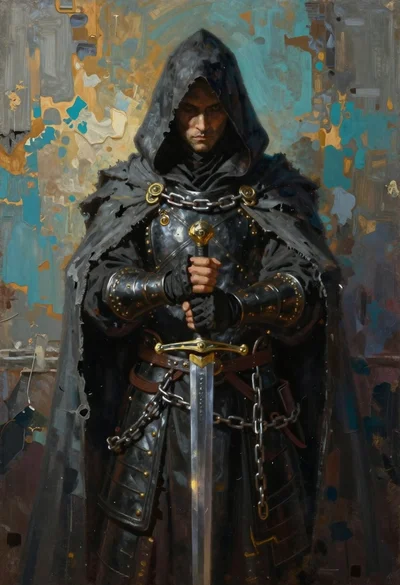
Hooded figure standing before weathered stone wall
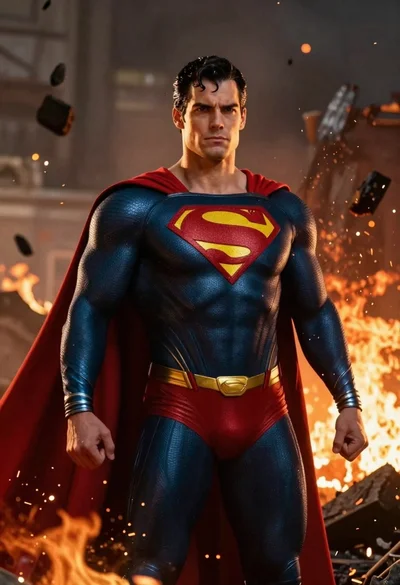
Superman standing in a fiery ruined battlefield setting
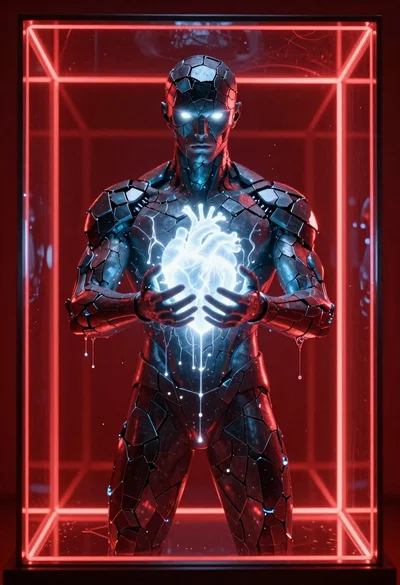
Obsidian humanoid in neon cube holding glowing heart