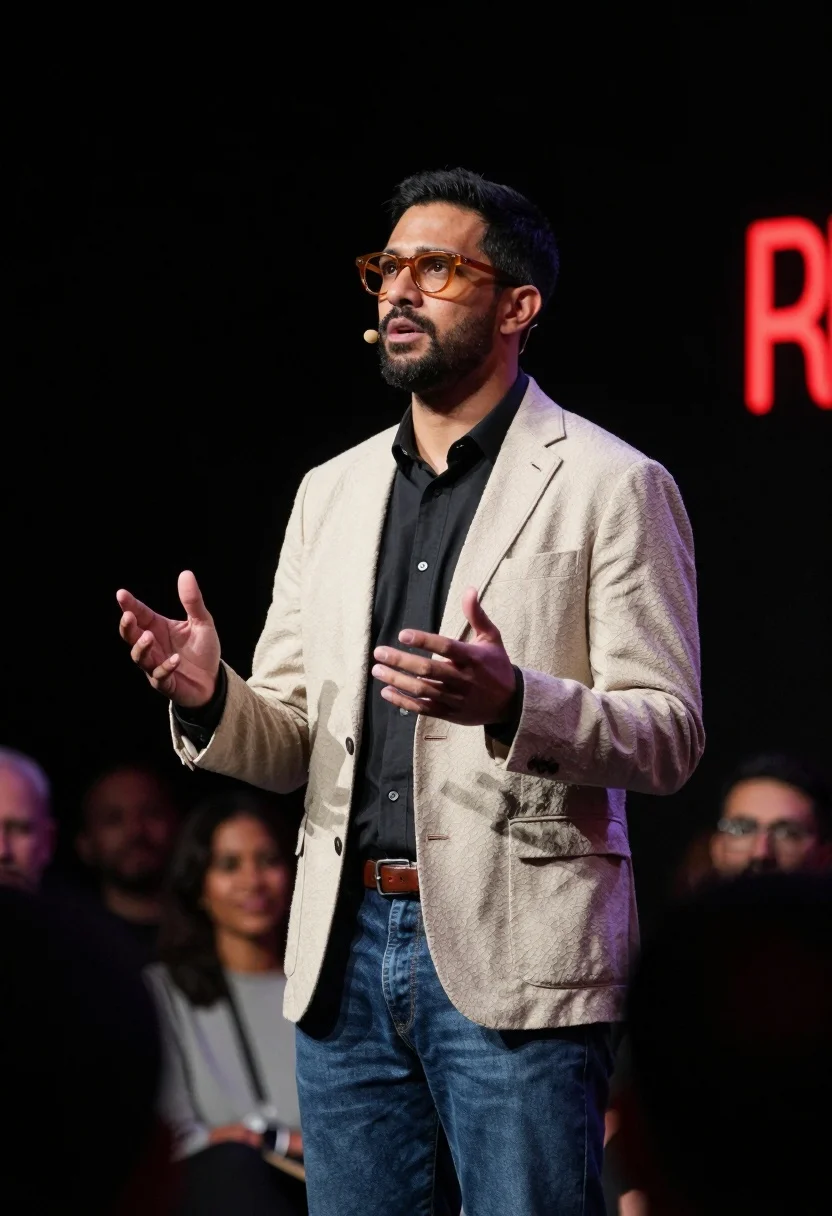
Man giving speech on dimly lit stage with dramatic spotlighting and audience
Prompt
A man stands on a stage delivering a speech with a focused expression and an open hand gesture.

Subject: A dark-haired man with a short beard wearing amber-tinted glasses and a headset microphone.

Clothing: He wears a light beige textured blazer over a dark button-down shirt, paired with blue jeans and a brown leather belt.

Action: The man looks upward and to the side while gesturing with his right hand, appearing engaged in conversation or presentation.

Environment: A dimly lit stage setting with blurred silhouettes of audience members in the foreground and red neon signage visible in the dark background.

Camera: Medium shot capturing the subject from the waist up with a shallow depth of field that blurs the foreground audience and background elements.

Lighting: Dramatic spotlighting illuminates the speaker against a dark backdrop, creating high contrast and emphasizing his facial features and clothing texture.

Style Details: Cinematic photography with a professional stage aesthetic, sharp focus on the subject, and moody atmospheric lighting.
Description
This prompt is useful for creating dramatic keynote speeches, cinematic character portraits, and editorial event coverage that requires high contrast. The combination of 'dramatic spotlighting' against a 'dark backdrop' ensures the speaker remains the undeniable focal point, while the 'shallow depth of field' intentionally blurs the audience silhouettes to prevent visual competition with the subject's 'focused expression'.
Suggestions
- Change 'amber-tinted glasses' to 'reflective black glasses' for a more severe look.
- Swap 'light beige textured blazer' for 'charcoal wool blazer' to deepen the contrast.
- Add 'anamorphic lens flare' to enhance the cinematic quality.
Category
Tags
MaleMedium ShotRealisticStreetwear
Date added
July 12, 2026
Added by
PromptDexter Team
Related Prompts
More prompts with similar categories and tags.
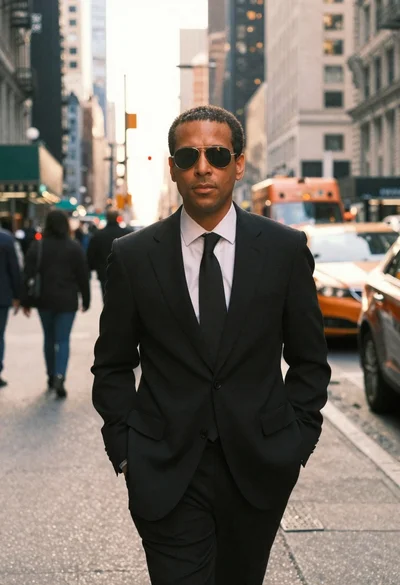
Man in suit walking down city street at golden hour
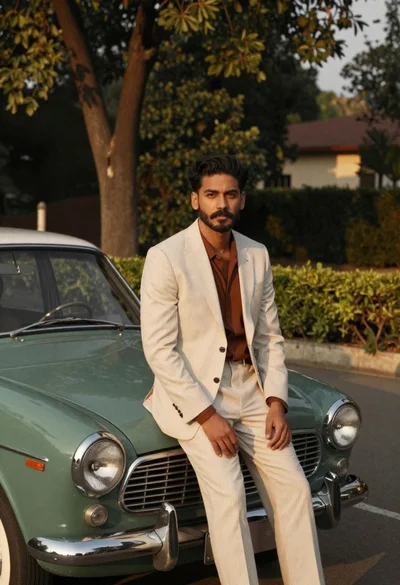
Man in pinstripe suit on vintage green sedan outdoors
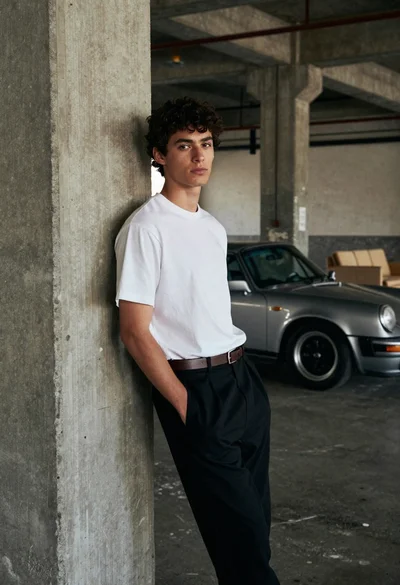
Young man leaning against concrete pillar near classic porsche car
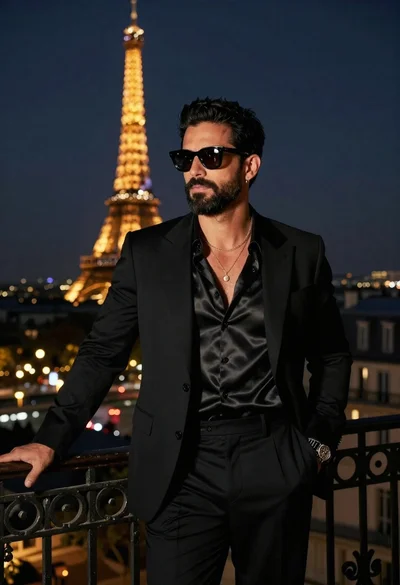
Stylish man on balcony overlooking eiffel tower at night
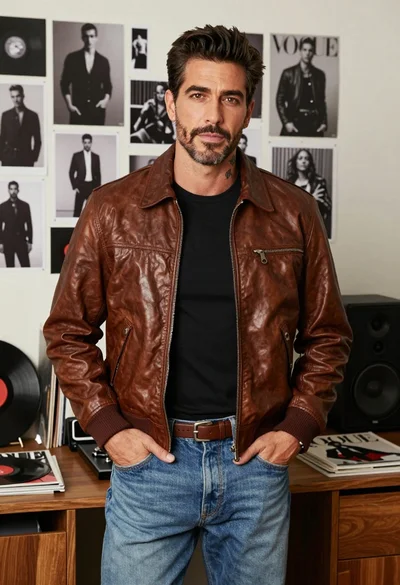
Handsome man standing indoors wearing bomber jacket jeans against magazine collage background
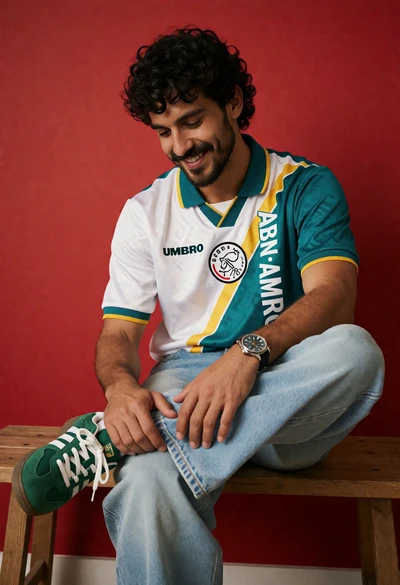
Young man sitting on wooden bench against solid red wall in vintage
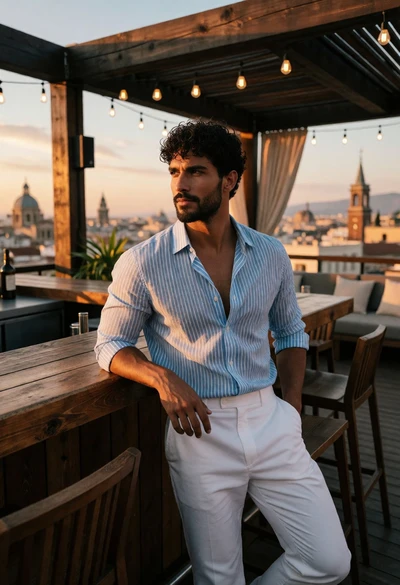
Handsome man leaning on bar counter overlooking historic city skyline at sunset
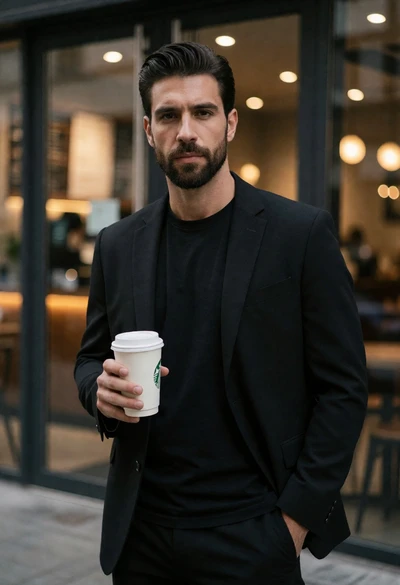
Handsome man in black blazer standing outside cafe with coffee cup
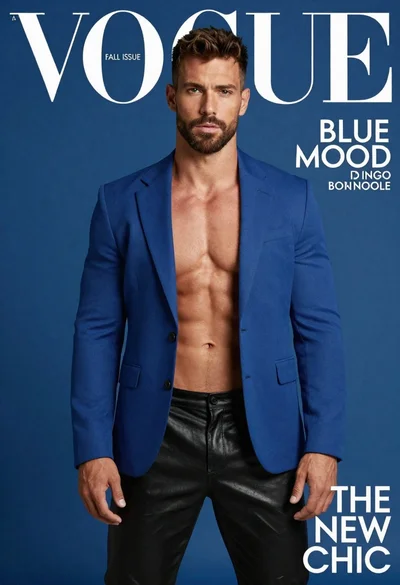
Muscular man in blue blazer on solid deep blue background
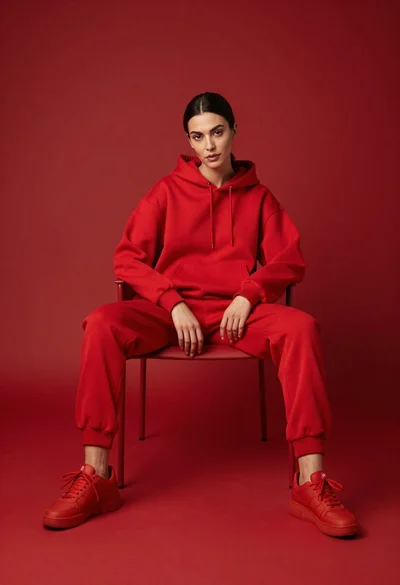
Woman in red hoodie sitting on chair against red background