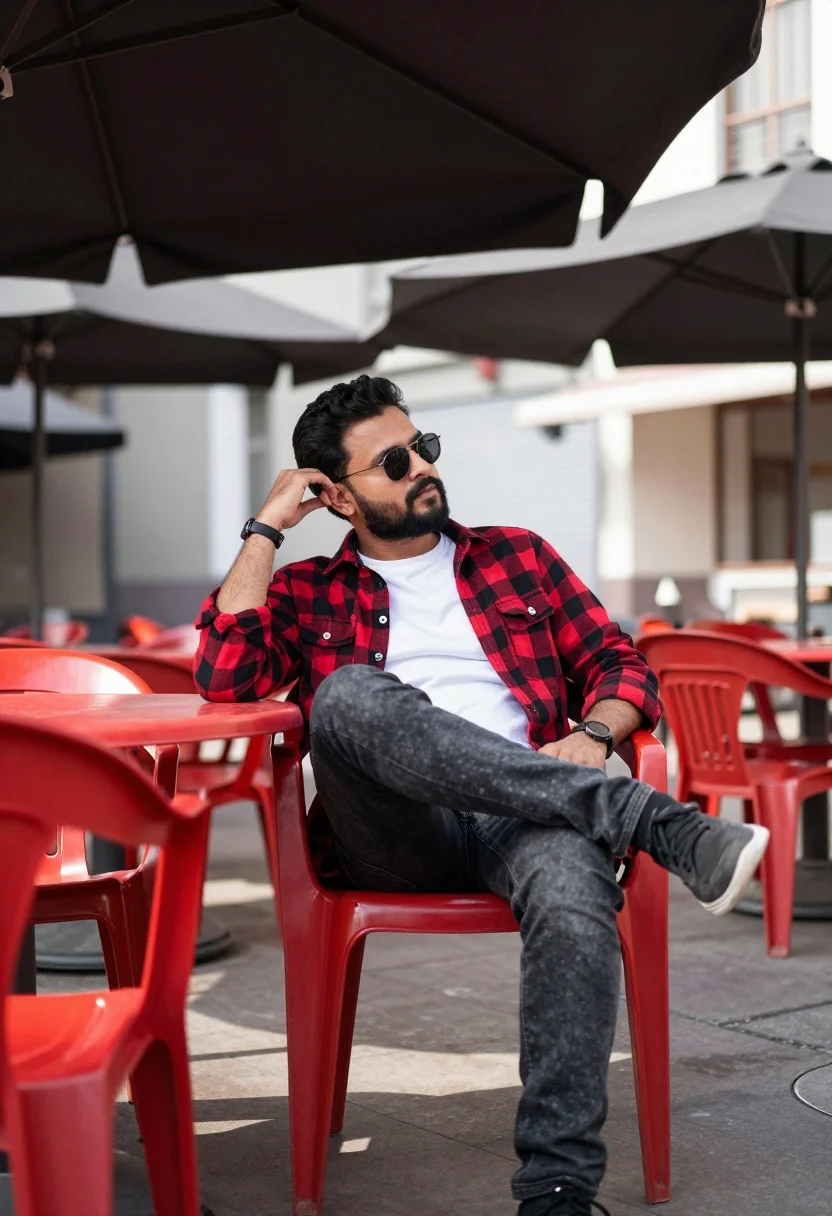
Man sitting casually at outdoor cafe under large umbrellas with red furniture
Prompt
A man sits casually on a chair at an outdoor cafe under large umbrellas.

Subject: A man with a beard and sunglasses sits in a relaxed pose, looking away from the camera while resting one hand on his head.

Clothing: He wears a red and black plaid shirt over a white t-shirt, paired with dark jeans and sneakers.

Action: The subject is seated with one leg crossed over the other, gazing into the distance with a calm expression.

Environment: The setting is an outdoor patio area featuring bright red plastic tables and chairs arranged under large umbrellas.

Camera: The shot is taken from a low angle looking up at the subject, utilizing a shallow depth of field to blur the background.

Lighting: Natural daylight illuminates the scene, casting soft shadows and highlighting the vibrant colors of the surroundings.

Objects: Red plastic furniture dominates the immediate vicinity, with blurred structures visible in the distant background.

Style Details: The image features a high-contrast color grade that emphasizes the reds against a slightly desaturated backdrop.
Description
This prompt is useful for creating lifestyle magazine spreads, urban portraiture featuring strong color accents, and street photography mood boards. The combination of 'low angle looking up at the subject' with 'natural daylight' ensures the man appears dominant within the frame, while the 'high-contrast color grade that emphasizes the reds' prevents the vibrant red plastic furniture from looking flat against the desaturated background.
Suggestions
- Change 'red and black plaid shirt' to 'navy blue linen shirt' for a more muted palette.
- Add 'bokeh effect' to enhance the shallow depth of field blur.
- Swap 'sneakers' for 'loafers' to adjust the overall formality.
Category
Tags
CafeCasual WearLow AngleMaleRealisticStreetUrban
Date added
July 12, 2026
Added by
PromptDexter Team
Related Prompts
More prompts with similar categories and tags.
Young man on fence against modern city skyline
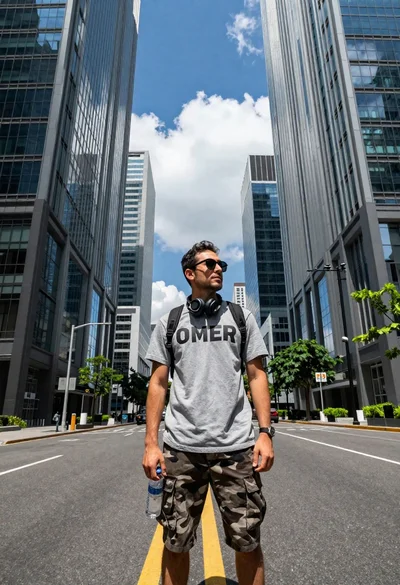
Young man in city street between glass skyscrapers
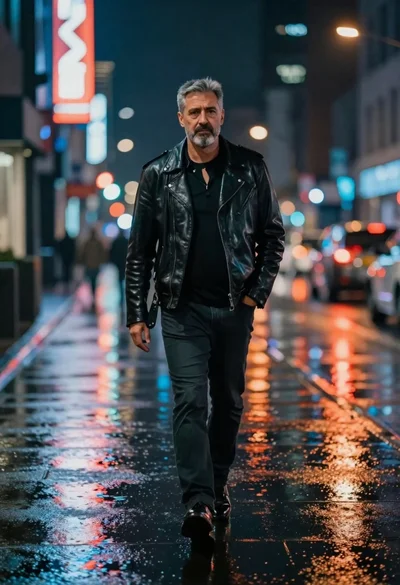
Man walking down rain slicked city street at night
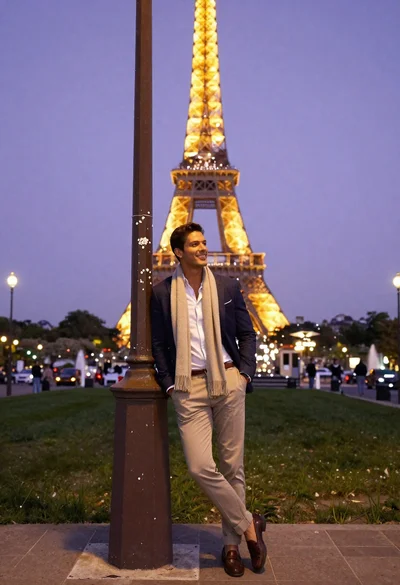
Stylish man posing before eiffel tower at paris twilight
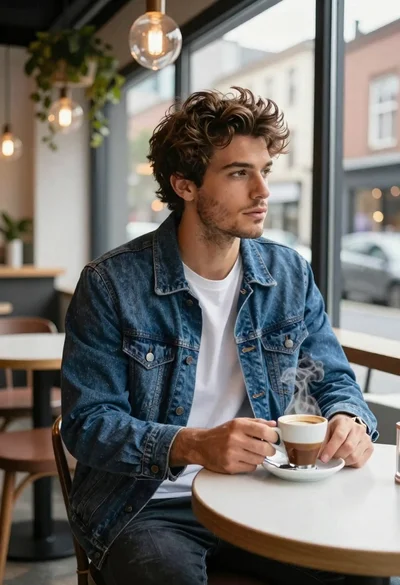
Young man in cafe looking out at city view
Young man sitting by graffiti brick wall with headphones low angle shot
Man leaning against brick wall at night with neon lights
Young man sitting on stone bench in urban park at night
Young man sitting on concrete stairs at night with dark curly hair
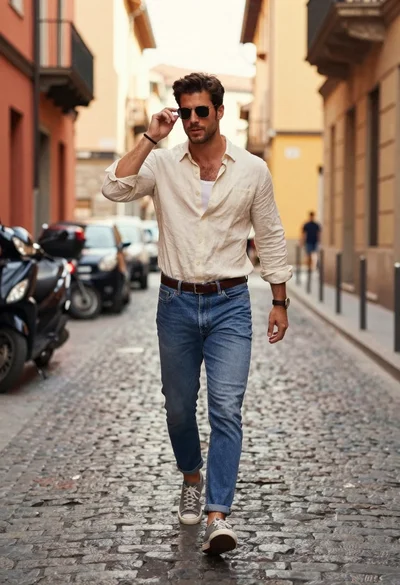
Handsome young man walking down narrow european cobblestone street