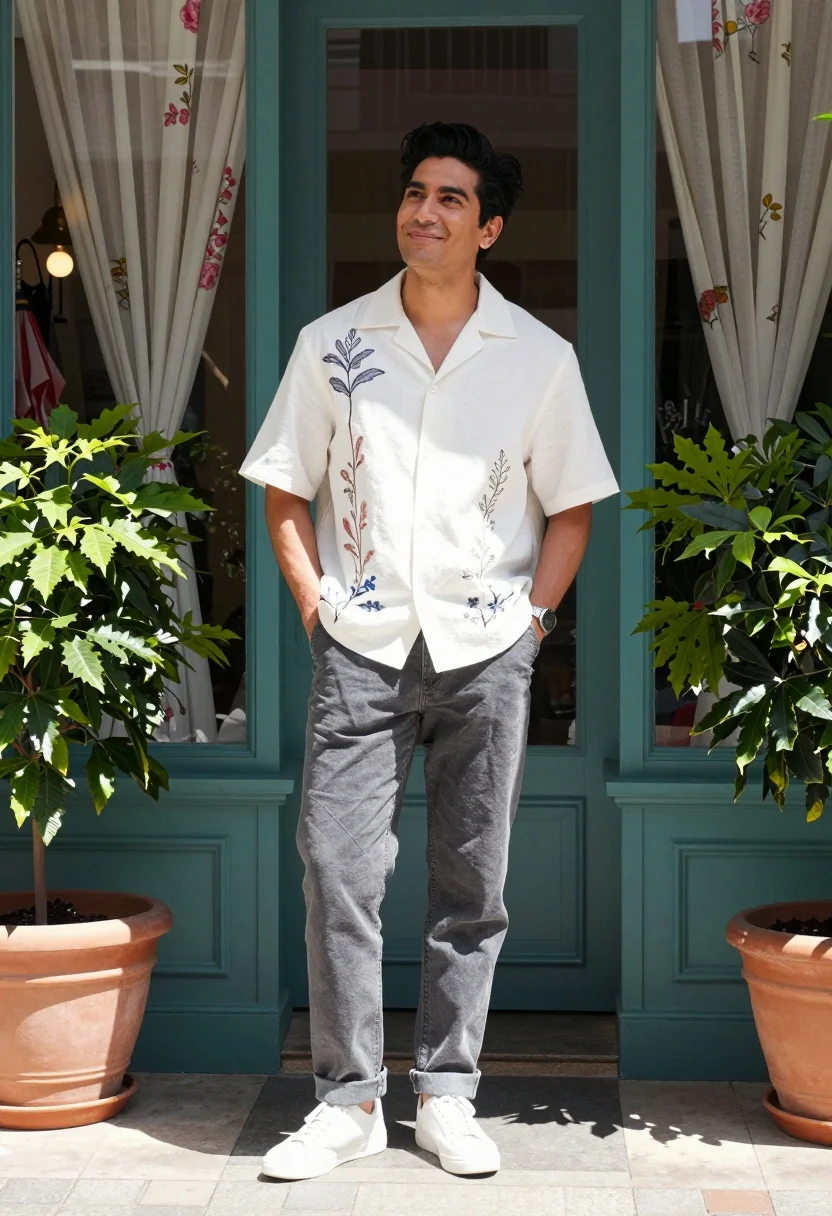
Man standing smiling by storefront with teal windows and potted plants
Prompt
A man stands smiling confidently in front of a shop with teal window frames and large potted plants.

Subject: A man with dark hair styled upwards, wearing a white short-sleeved shirt with floral embroidery and grey trousers.

Clothing: He wears a loose-fitting white button-up shirt with botanical prints on the chest and sleeves, paired with plain grey jeans rolled at the cuffs and white sneakers.

Action: He stands with his hands in his pockets, looking slightly upward with a relaxed and happy expression.

Environment: The setting is an outdoor storefront featuring large teal-framed windows displaying floral curtains and decorative umbrellas inside.

Objects: Large potted plants flank the man on both sides, adding greenery to the scene.

Camera: The shot is taken at eye level with a medium-full framing that captures the subject from head to toe against the shop background.

Lighting: Bright natural sunlight illuminates the scene, casting distinct shadows and highlighting the textures of the clothing and surroundings.

Style Details: The image has a clean, high-quality photography aesthetic with vibrant colors and sharp focus on the subject.
Description
This prompt is useful for creating lifestyle street photography, menswear editorial spreads, and local business promotion materials. The combination of 'bright natural sunlight' casting distinct shadows against the 'teal window frames' grounds the image in a specific time and place, while the 'loose-fitting white button-up shirt with botanical prints' ensures the subject remains visually interesting despite the structured background elements.
Suggestions
- Change 'floral embroidery' to 'subtle geometric pattern' for a more modern feel.
- Swap 'grey trousers' for 'khaki chinos' to complement the teal.
- Adjust 'bright natural sunlight' to 'overcast daylight' for softer shadows.
Category
Tags
Casual WearFull BodyMaleMedium ShotOutdoorsRealisticStreet
Date added
August 5, 2026
Added by
PromptDexter Team
Related Prompts
More prompts with similar categories and tags.
Stylish man leaning against stone wall in sunlight
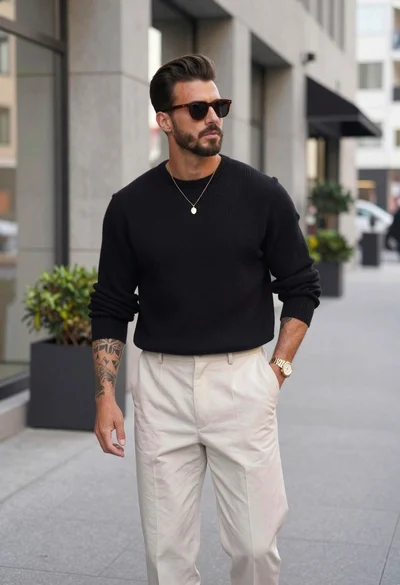
Stylish man in black sweater and cream trousers on city sidewalk
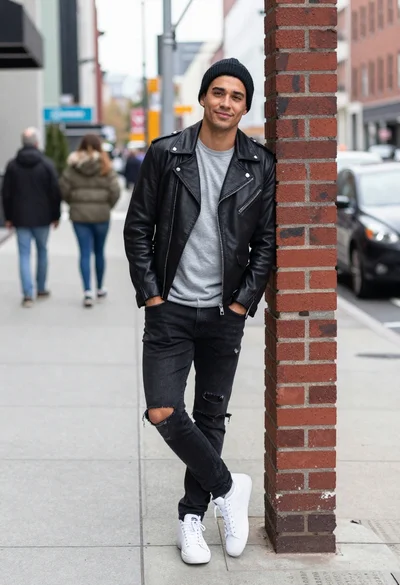
Stylish man in leather jacket leaning against red brick wall
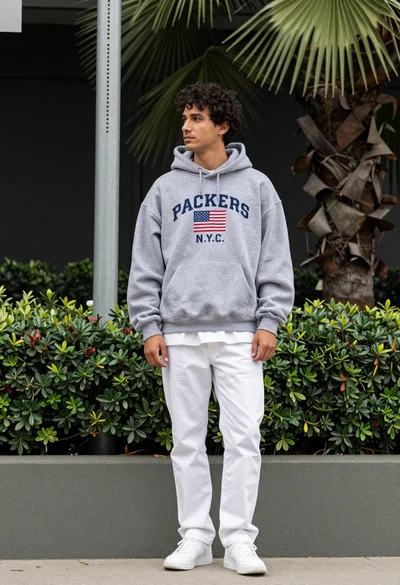
Man in grey hoodie leaning on low wall outdoors with green foliage
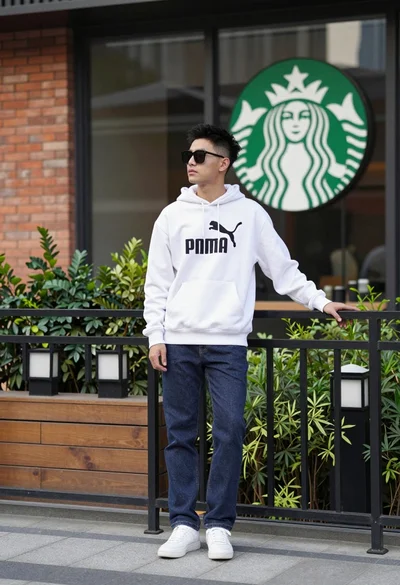
Young man leaning on railing outside modern building with starbucks logo
Stylish man walking down urban street with puffer jacket and bright blue
Stylish woman in grey coat on urban sidewalk
Stylish young woman in black vest standing on paved road near green
Young man sitting on ledge in modern cityscape at golden hour
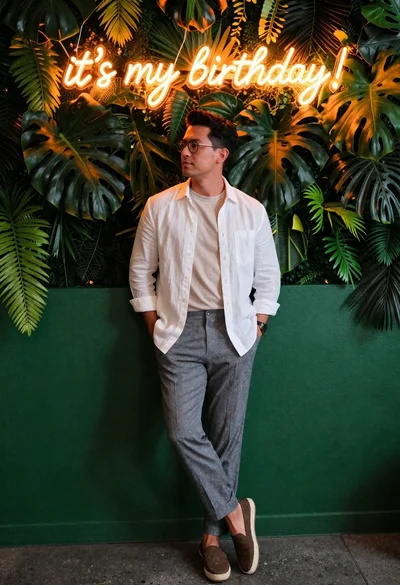
Stylish man against green wall with neon glow