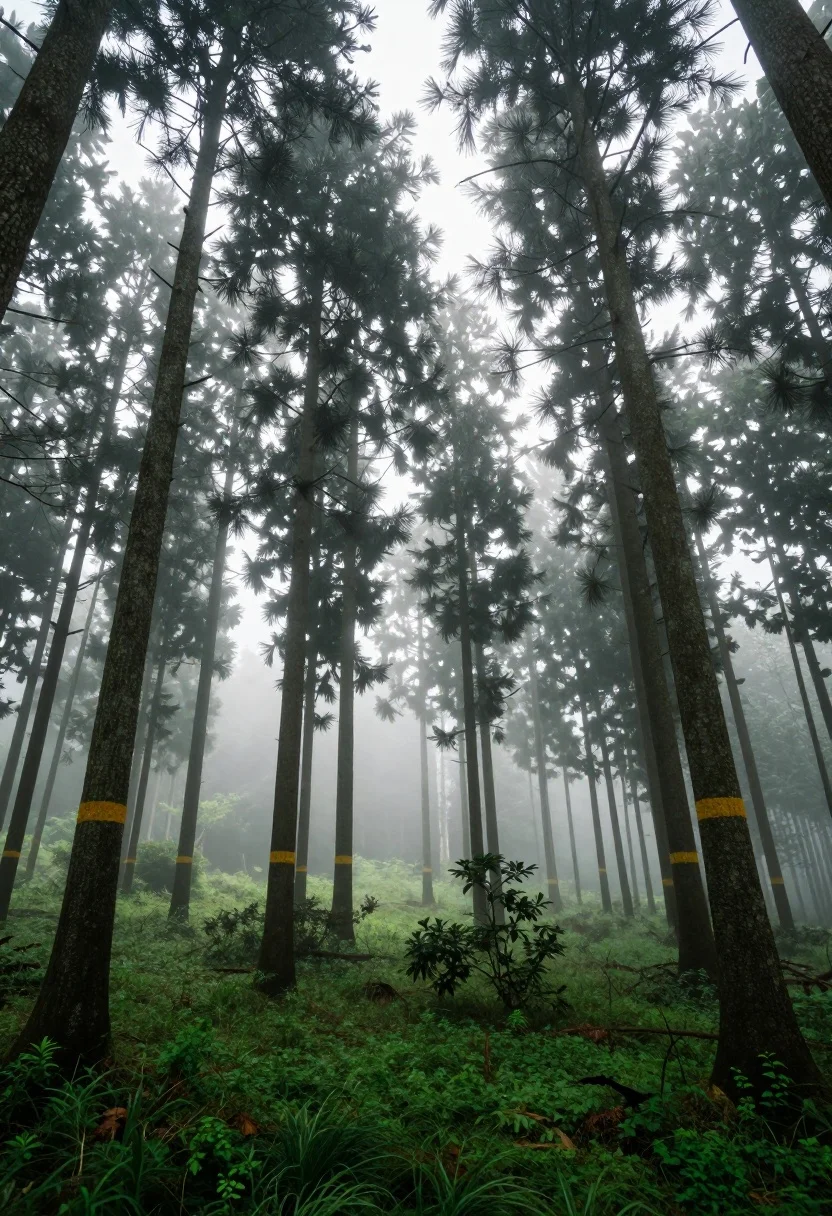
Low angle view of tall coniferous trees in a misty forest setting
Prompt
A misty forest scene dominated by tall, slender trees rising vertically into a foggy sky.

Subject: A dense grove of towering coniferous trees with dark green foliage crowning their tops and smooth, straight trunks extending upward.

Action: The scene is static with no visible movement, though the atmosphere suggests a stillness held by heavy mist.

Environment: The setting is a lush forest floor covered in vibrant green grass and scattered low-lying shrubs and bushes. Several tree trunks feature distinct yellow bands wrapped around their mid-sections. The background fades into a thick, white fog that obscures the distance and creates a sense of depth.

Camera: A low-angle perspective looking up at the towering trees to emphasize their height, with a vertical composition that aligns with the straight lines of the trunks.

Lighting: Diffused, soft natural light filters through the heavy mist, creating a hazy glow in the background and casting gentle shadows on the forest floor.

Style Details: A serene and atmospheric mood defined by cool tones, high contrast between the dark tree silhouettes and the bright white fog, with a slightly grainy texture that enhances the ethereal quality of the scene.
Description
This prompt is useful for creating dramatic landscape photography, concept art backgrounds for fantasy settings, and atmospheric nature editorials. The combination of 'low-angle perspective' and 'vertical composition' forces the viewer's eye upward, exaggerating the height of the coniferous trees while the 'thick, white fog' obscures background details, preventing a sense of flat depth.
Suggestions
- Change 'dark green foliage' to 'deep emerald needles' for more specific color.
- Add 'volumetric light shafts' to enhance the mist interaction.
- Swap 'yellow bands' for 'weathered brown ribbons' to match the forest tones.
Category
Tags
ForestFull BodyLow AngleNatureOutdoorsRealisticWide Shot
Date added
August 5, 2026
Added by
PromptDexter Team
Related Prompts
More prompts with similar categories and tags.
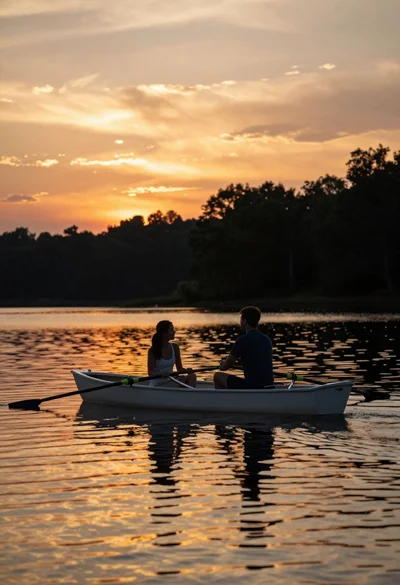
Couple in white rowboat gazing at each other during vibrant sunset over
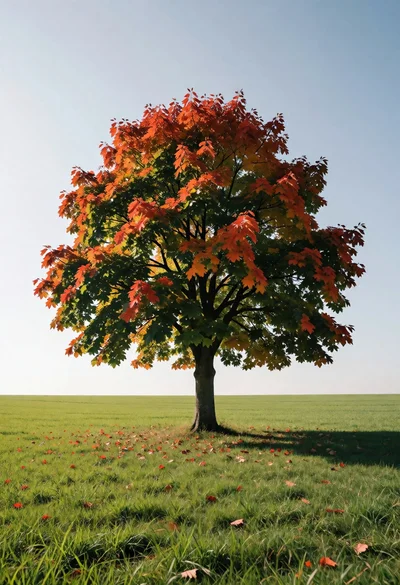
Solitary autumn tree in a vast green field under clear blue sky
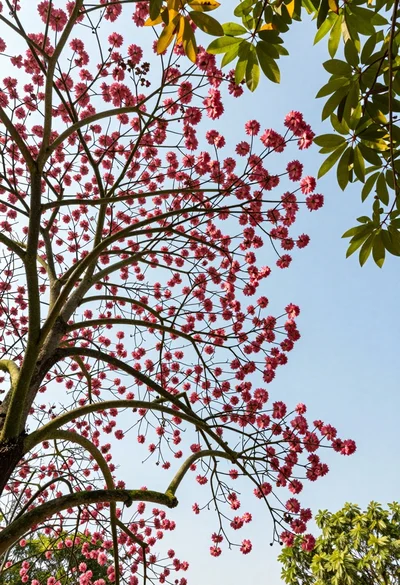
Low angle view looking up into the canopy of a flowering tree against a clear sky
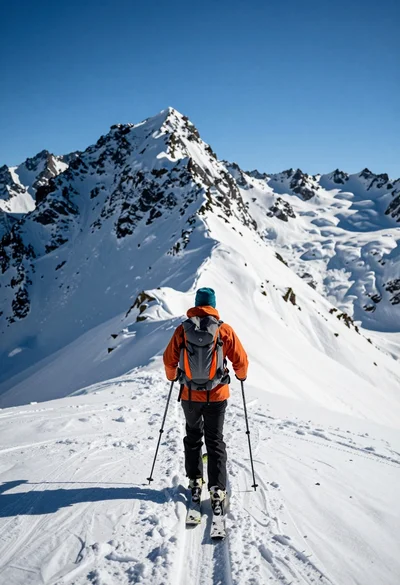
Lone skier ascending snowy mountain ridge under bright blue sky
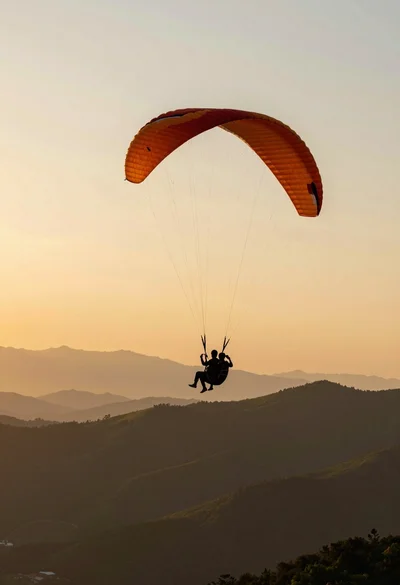
Silhouette of tandem paragliders soaring above green mountain range at sunset
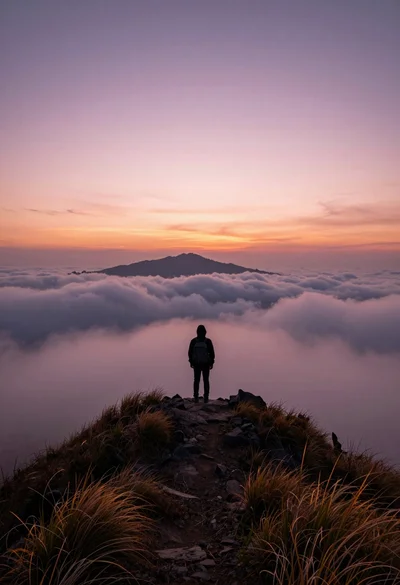
Solitary hiker silhouette atop mountain peak above sea of clouds at sunrise
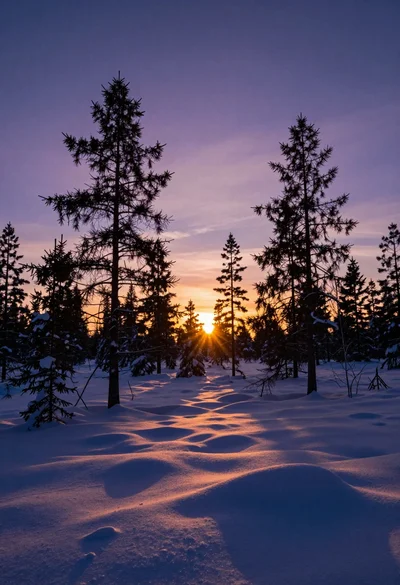
Vast snowy forest landscape at sunset with evergreen silhouettes against vibrant sky
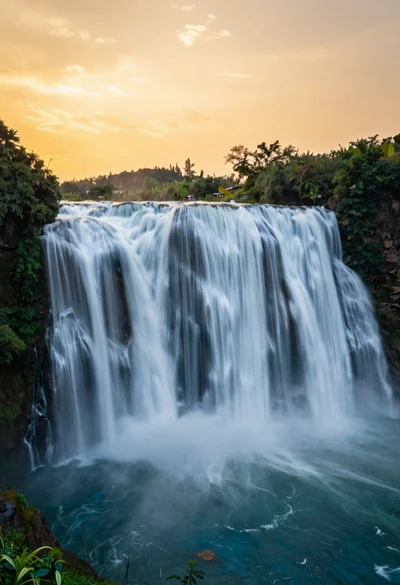
Majestic wide waterfall cascading over a rocky cliff into deep blue pool
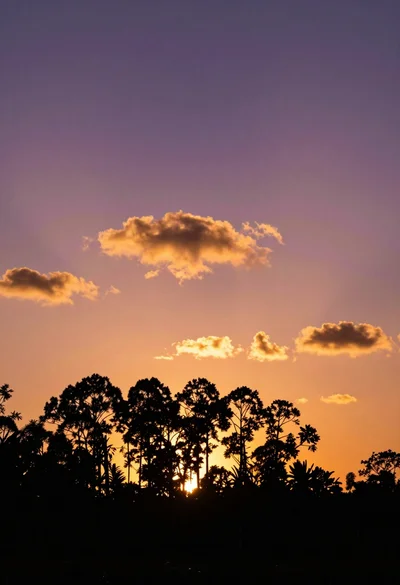
Dark tree silhouettes against vibrant sunset sky wide angle view
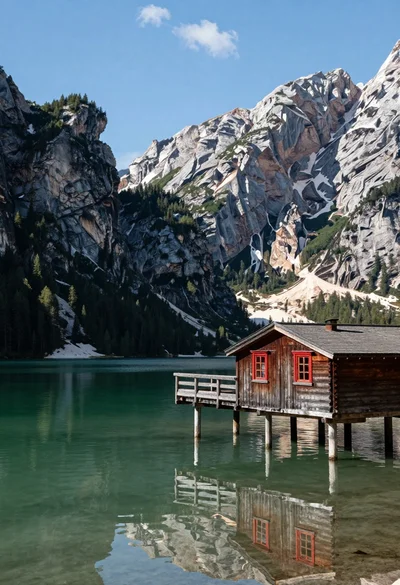
Rustic wooden cabin on stilts reflected in serene emerald mountain lake