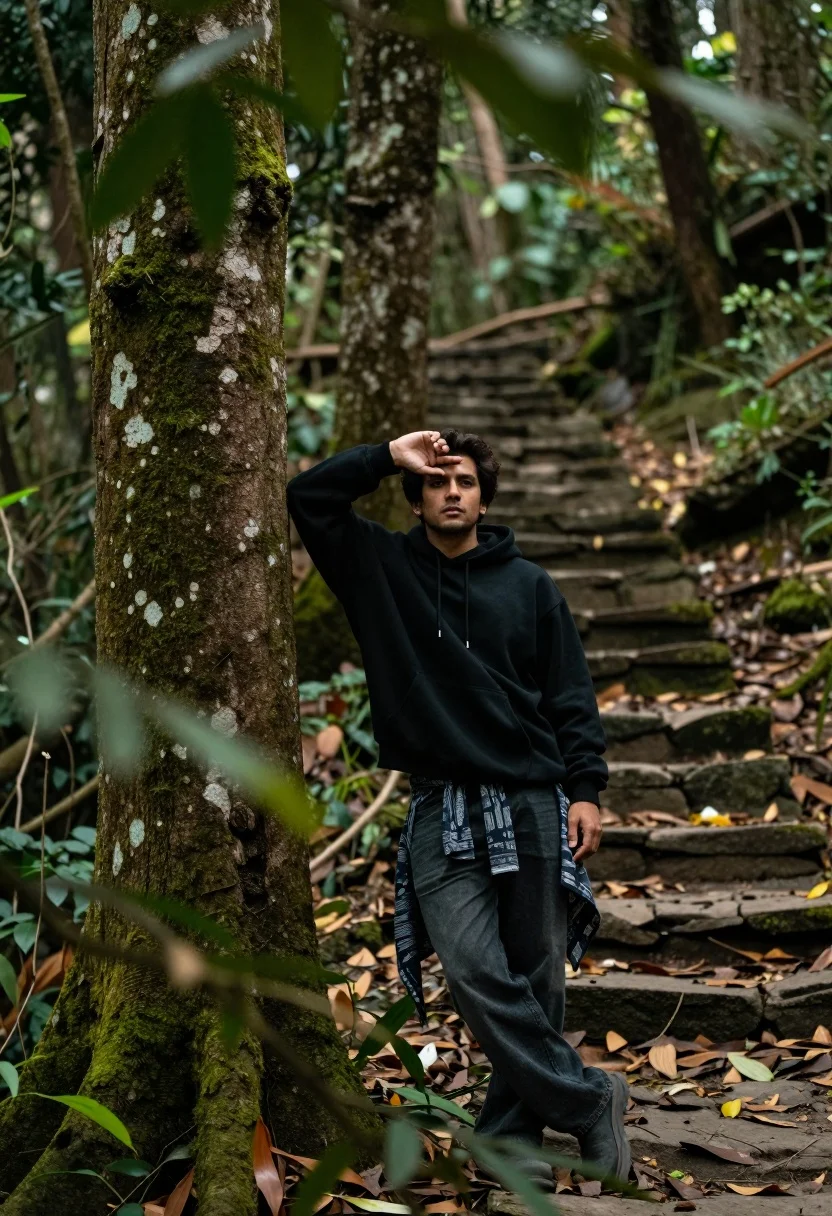
Man leaning against mossy tree in dense forest setting looking at camera
Prompt
A man stands in a lush forest setting, leaning casually against a large tree trunk with one hand raised near his head.

Subject: A man with dark hair standing confidently in a natural woodland environment.

Clothing: He wears an oversized black hoodie and dark jeans, with a patterned cloth tied around the waist of his pants.

Action: The man leans back against a mossy tree while raising one hand to frame his face near his temple, looking directly at the camera with a relaxed expression.

Environment: A dense forest scene featuring large trees, stone steps leading upward into the background, and scattered leaves on the ground.

Camera: Shot through a natural frame of blurred foreground foliage, creating depth with a shallow depth of field that keeps the subject sharp while softening the surroundings.

Lighting: Soft, diffused natural light filters through the canopy, casting gentle shadows and highlighting the textures of the trees and clothing.

Objects: A large moss-covered tree trunk to the left and stone steps winding up the hill in the background.

Style Details: Naturalistic photography with a cinematic color palette, muted tones, and a focus on organic textures and atmospheric depth.
Description
This prompt is useful for creating editorial nature portraits, moody character concept art, and high-end outdoor lifestyle editorials. The combination of 'soft, diffused natural light' filtering through the canopy and the 'shallow depth of field' ensures that while the subject remains sharp, the surrounding 'mossy tree trunk' and foliage provide rich, atmospheric context without distracting from the man's direct gaze.
Suggestions
- Change 'oversized black hoodie' to 'charcoal knit sweater' for a different texture.
- Swap 'stone steps leading upward' for 'fallen logs creating paths' to alter the background flow.
- Adjust 'muted tones' to include 'deep emerald and rust accents' for more color saturation.
Category
Tags
Casual WearForestFull BodyMaleMedium ShotOutdoors
Date added
August 5, 2026
Added by
PromptDexter Team
Related Prompts
More prompts with similar categories and tags.
Young woman with brown hair sitting on a log in sunlit forest
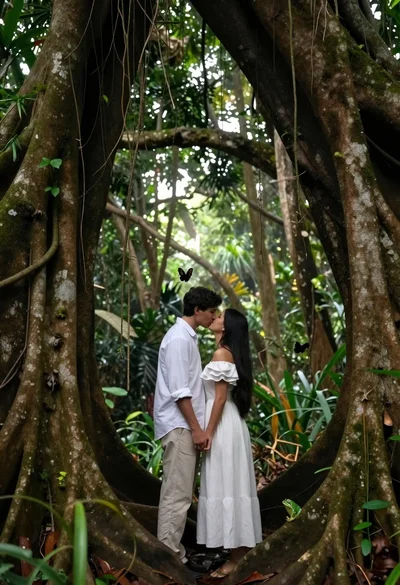
Romantic couple kissing under ancient tree roots in lush rainforest
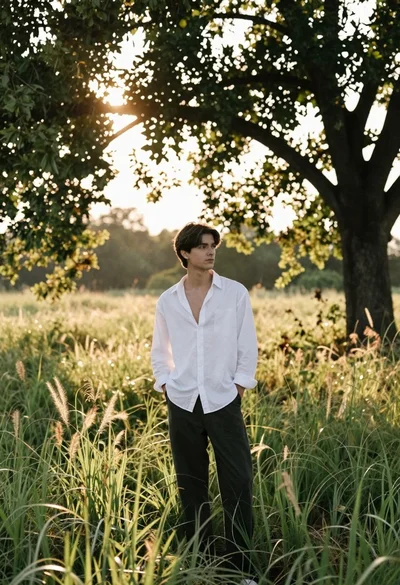
Young man in white shirt standing in a sunny grassy field under
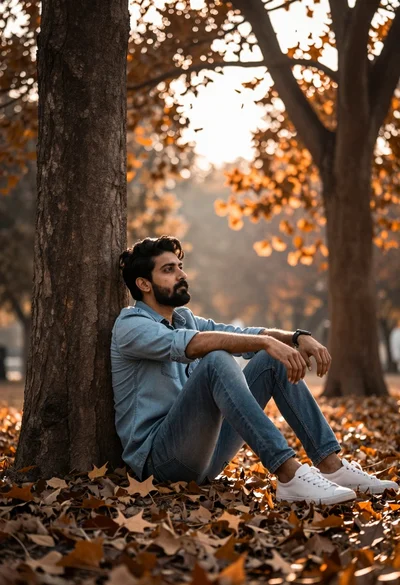
Man sitting against tree in autumnal park with golden filtered sunlight
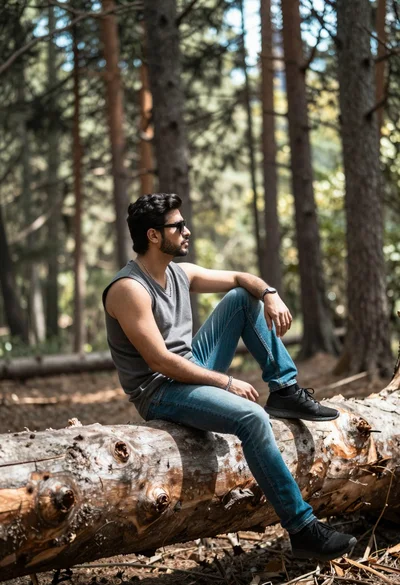
Man sitting on fallen log in sundappled pine forest background

Young man looking up under large tree with falling autumn leaves
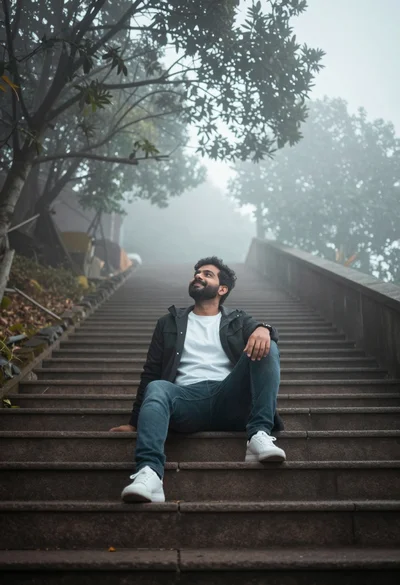
Man sitting on wide stone staircase in misty outdoor setting looking up
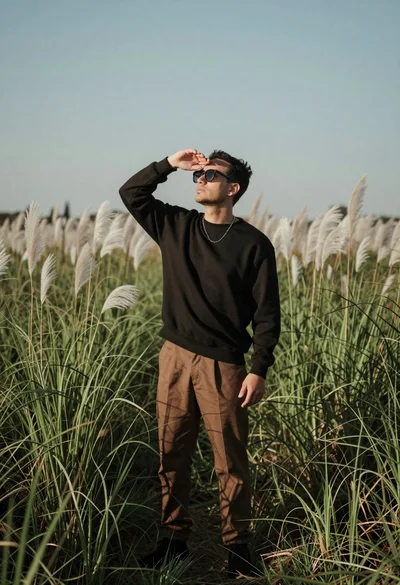
Man in black sweatshirt standing in tall green grass shielding eyes from
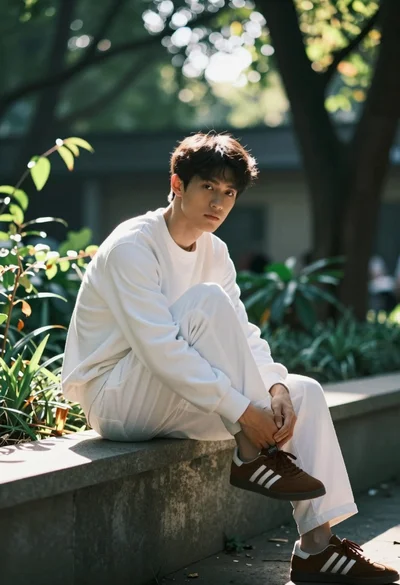
Young man sitting on concrete ledge in sundappled garden setting
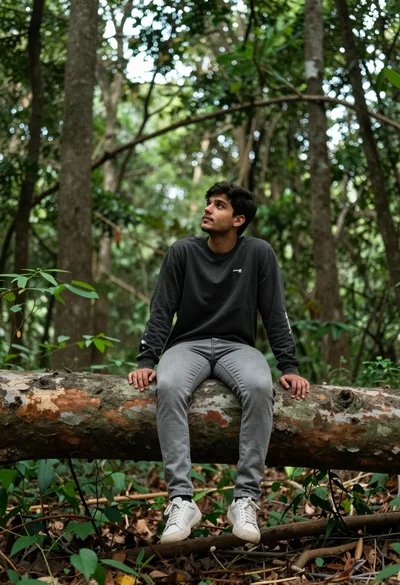
Young man sitting on fallen log in lush forest under soft daylight