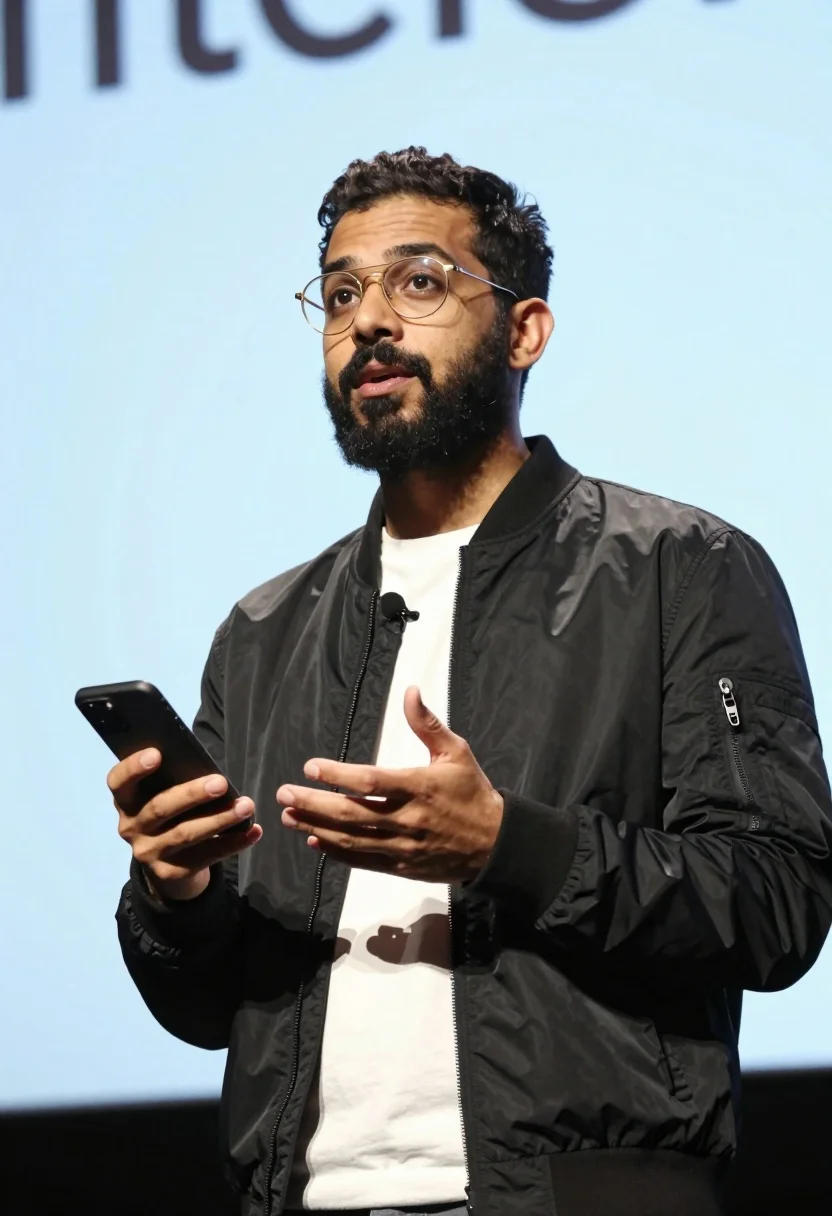
Man presenting on stage holding smartphone under strong dramatic lighting
Prompt
A man with dark hair and a beard wearing gold-rimmed glasses stands on a stage holding a smartphone in his right hand while gesturing with his left.

Subject: A man with short dark hair, a full beard, and expressive facial features looking slightly to the side.

Clothing: He wears a black bomber jacket over a white t-shirt with a lavalier microphone clipped to the collar.

Action: He holds a smartphone in his right hand and gestures with his left hand open near his waist, appearing to speak or present.

Environment: A large projection screen is visible behind him displaying blurred text on a light blue background.

Camera: The shot is a medium close-up taken from a low angle looking up at the subject, emphasizing his presence against the backdrop.

Lighting: Strong stage lighting illuminates the man from the front and side, creating deep shadows in the jacket folds and highlighting his face and hands.

Objects: A black smartphone held in the right hand and a small lavalier microphone attached to the jacket collar.

Style Details: High-contrast photography with sharp focus on the subject and a blurred background, capturing a candid moment during a presentation or speech.
Description
This prompt is useful for creating corporate keynote speaker portraits, academic conference promotional materials, and dramatic editorial features about technology. The combination of 'low angle looking up at the subject' with 'strong stage lighting' sculpts the figure by generating deep shadows in the jacket folds, which visually anchors the man's authority against the intentionally blurred background.
Suggestions
- Change 'black bomber jacket' to 'charcoal wool blazer' for a more formal feel.
- Adjust 'light blue background' to 'deep navy gradient' for higher contrast.
- Swap 'medium close-up' for 'waist shot' to include more of the stage environment.
Category
Tags
Low AngleMaleMedium ShotRealisticStudio
Date added
July 12, 2026
Added by
PromptDexter Team
Related Prompts
More prompts with similar categories and tags.
Fair blonde woman in metallic corset mini dress against light blue studio
Fair blonde woman in deep red velvet dress posing against plain white
Stylish man in black blazer against vibrant city skyline at night
Man in white shirt standing in absolute black void
Young man in bulls jersey on brick storefront
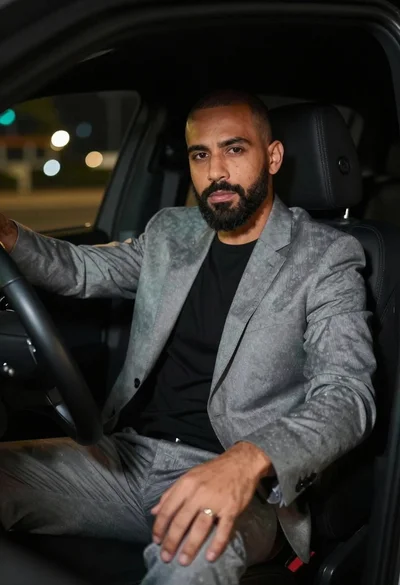
Man in suit sitting in car at night
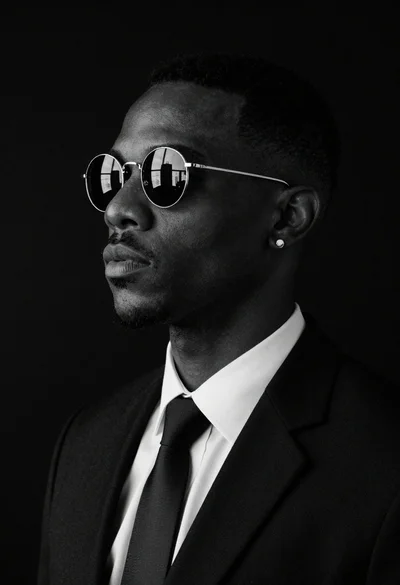
Black and white studio portrait of man with sunglasses
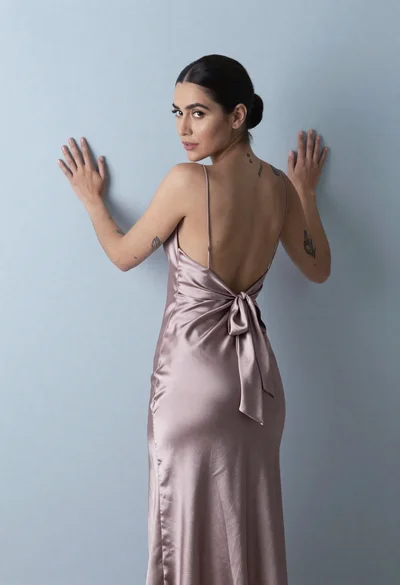
Woman in dusty rose slip dress looking over shoulder against light blue
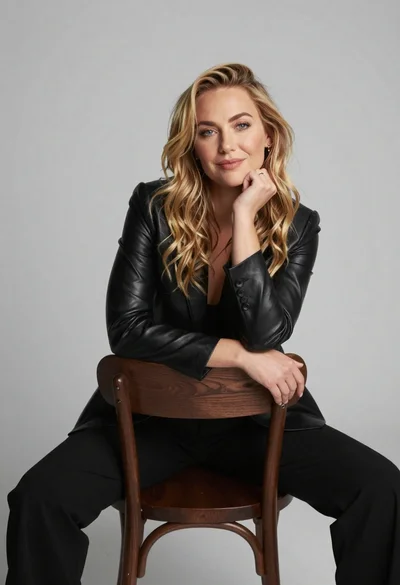
Fair blonde woman in black blazer sitting on chair in studio
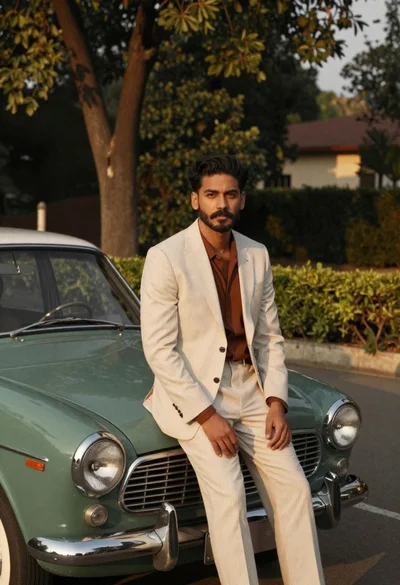
Man in pinstripe suit on vintage green sedan outdoors