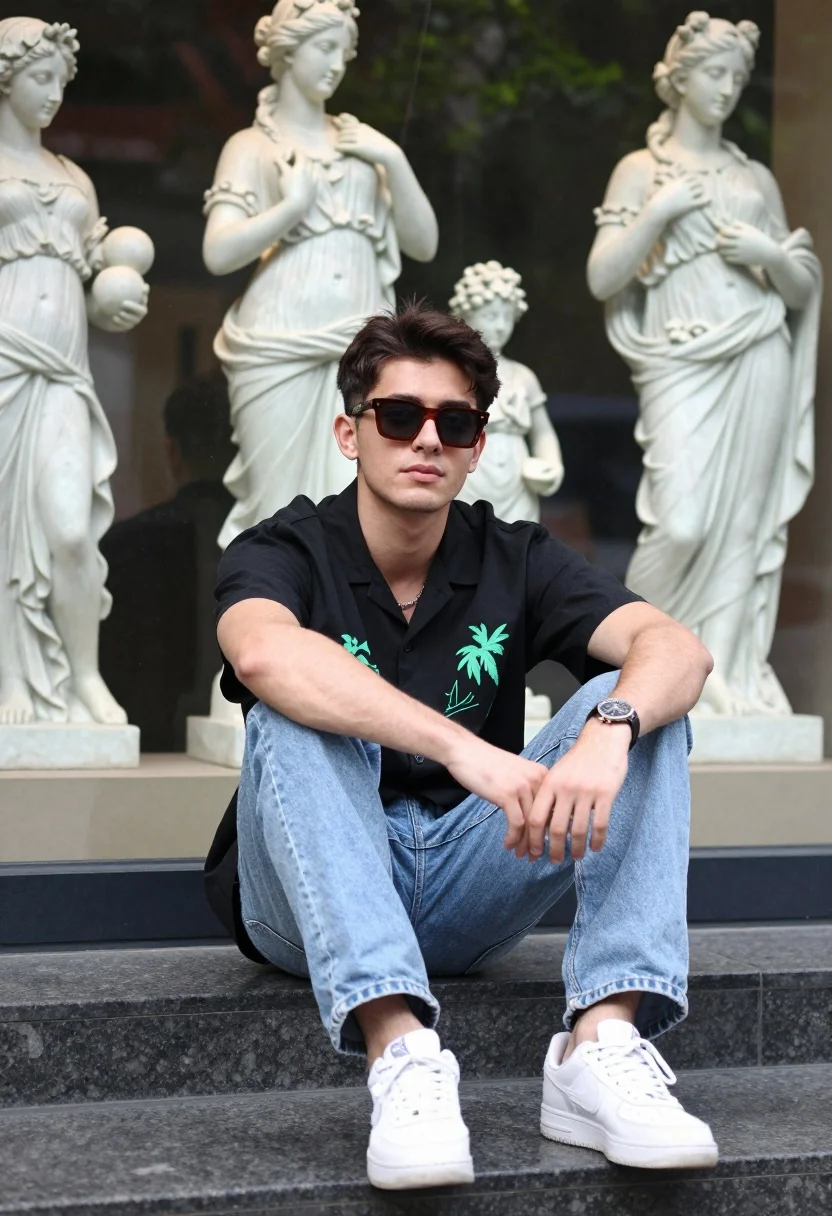
Young man sitting on stone ledge near classical statue display case
Prompt
A young man sits casually on a dark stone ledge in front of a glass display case containing classical statues.

Subject: A young man with a serious expression wearing dark sunglasses and a black short-sleeved button-up shirt featuring a green graphic print.

Clothing: He wears light blue jeans, white sneakers, and a silver necklace; a watch is visible on his left wrist.

Action: He sits with his legs bent and arms resting on his knees in a relaxed pose, looking directly at the camera.

Environment: The background features a glass wall behind him displaying several classical-style statues of women holding flowers or fruit, set against dark foliage.

Camera: The shot is framed from a slightly low angle looking up at the subject, with a shallow depth of field that keeps the man sharp while blurring the statues in the background.

Lighting: Soft natural daylight illuminates the scene evenly, creating gentle shadows and highlighting the textures of his clothing.

Objects: Several classical-style statues are visible behind the glass display case.

Style Details: The image has a candid photography aesthetic with realistic color grading and natural film grain.
Description
This prompt is useful for creating editorial street portraits, architectural lifestyle content, and character studies set in historical urban environments. The combination of 'slightly low angle looking up at the subject' combined with a 'shallow depth of field' ensures the man remains the primary focus while using the blurred classical statues to establish an immediate sense of place without distracting from his 'serious expression'.
Suggestions
- Change 'dark stone ledge' to 'weathered marble bench' for more texture.
- Swap 'green graphic print' for 'subtle pinstripe' for a more formal look.
- Adjust 'soft natural daylight' to 'overcast daylight' for flatter shadows.
Category
Tags
Black HairCasual WearLow AngleMaleMedium ShotOutdoorsRealisticStreet
Date added
July 12, 2026
Added by
PromptDexter Team
Related Prompts
More prompts with similar categories and tags.
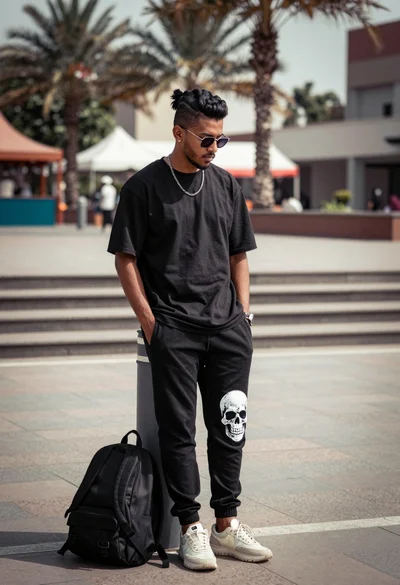
Man leaning against bollard in urban plaza with palm trees background
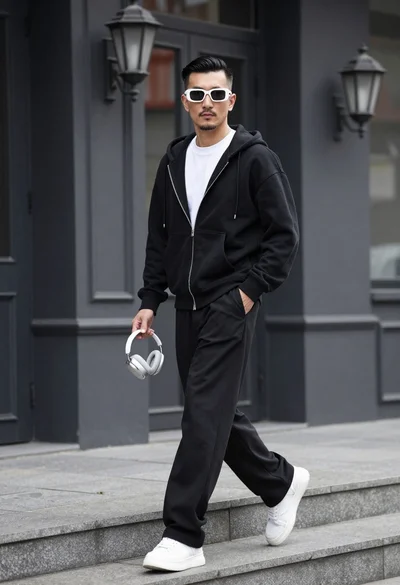
Stylish man walking down stone steps in front of dark building facade
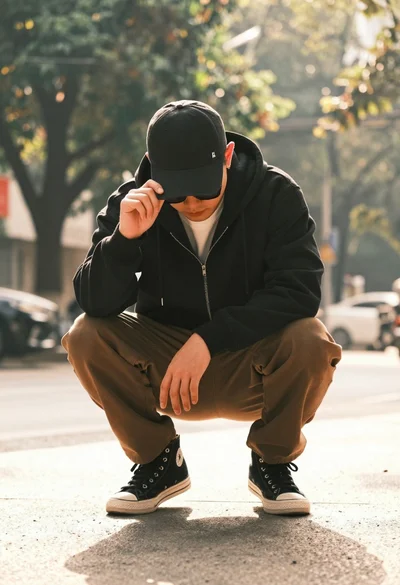
Man crouching low in urban setting adjusting cap with vintage film look
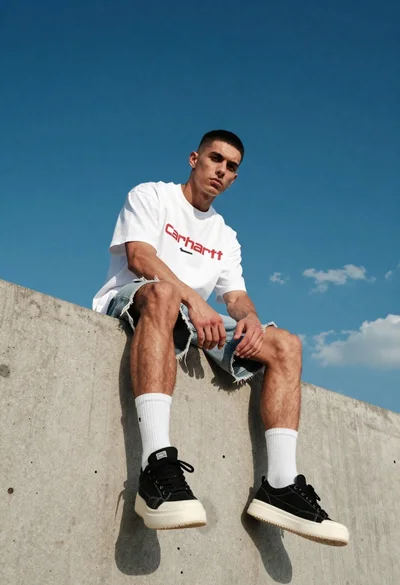
Young man sitting on concrete ledge under bright blue sky
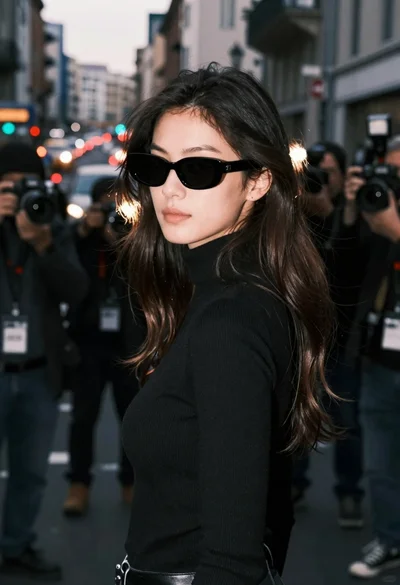
Young woman in black turtleneck looking over shoulder at street

Young man with dark curly hair holding silver boombox on urban street
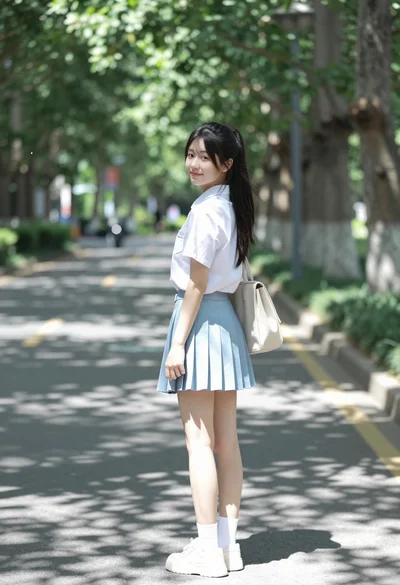
Young woman in white shirt and blue skirt on treelined paved walkway
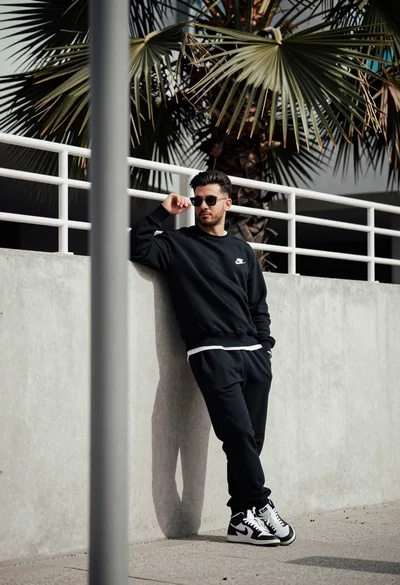
Stylish man leaning against concrete wall in an urban outdoor setting
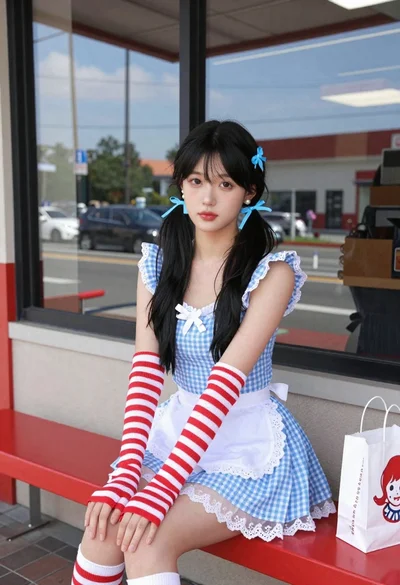
Young woman in maid dress outside wendys restaurant

Young man in bulls jersey on brick storefront