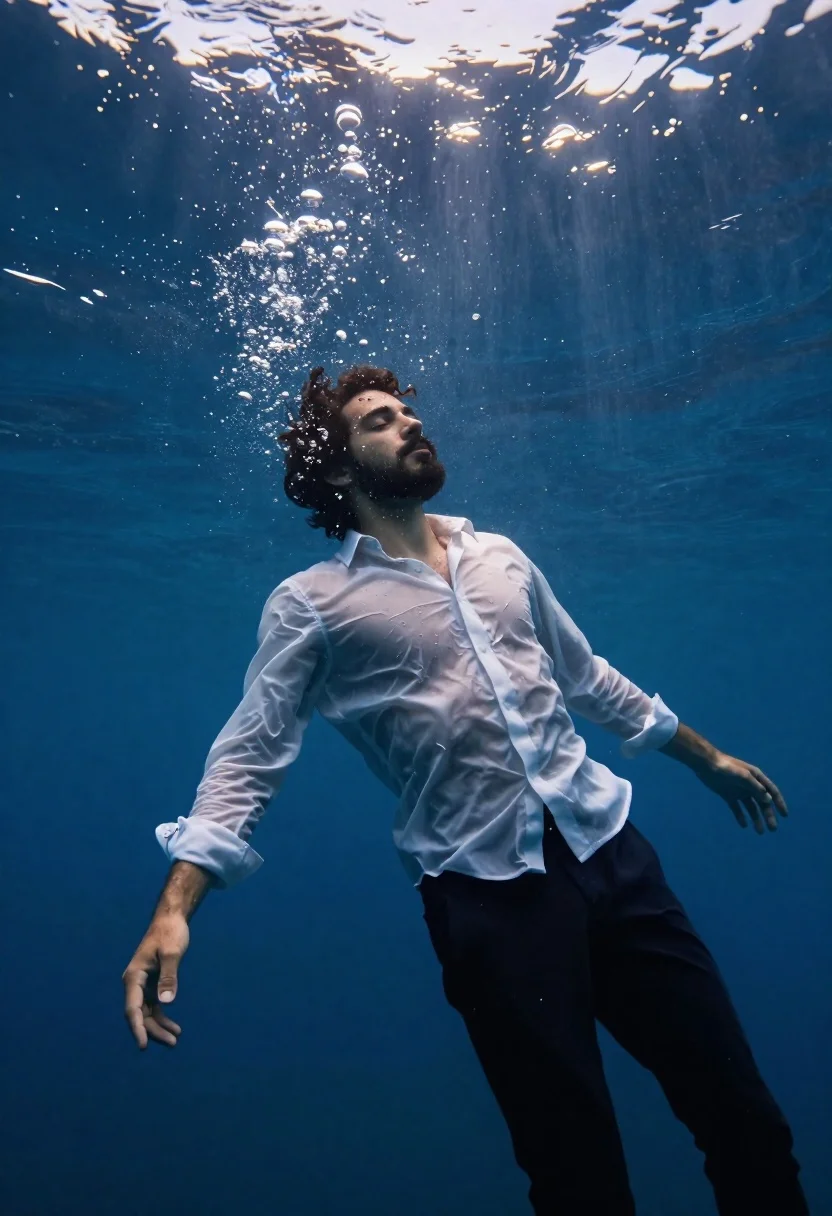
Cinematic underwater shot of a young man floating in deep blue water
Prompt
A cinematic underwater shot of a man floating peacefully in deep blue water with sunlight rays piercing from the surface above.

Subject: A young man with dark curly hair and a beard, eyes closed, wearing a wet white shirt and dark pants.

Clothing: A translucent white button-down shirt clinging to his torso and dark trousers, both soaked and rippling with water movement.

Action: Floating weightlessly in a relaxed pose with arms slightly extended, bubbles rising around him, and a serene expression on his face.

Environment: Deep underwater setting with clear blue water, floating air bubbles, and sunbeams filtering down from the surface creating a divine atmosphere.

Camera: Low-angle shot looking up at the subject from below, emphasizing the depth of the water and the light rays above.

Lighting: Dramatic backlighting from the sun breaking through the water surface, casting blue tones and highlighting the wet texture of the subject’s skin and clothes.

Style Details: Cinematic film look with high contrast, rich blues, soft focus on background elements, and emotional mood enhanced by water distortion and light refraction.
Description
This prompt is useful for creating surreal fine art prints, conceptual editorial spreads about introspection, and cinematic movie concept art. The combination of 'low-angle shot looking up' with 'dramatic backlighting from the sun breaking through the water surface' forces the viewer to look upward into the light source, which emphasizes the weightlessness of the subject while the 'translucent white button-down shirt clinging to his torso' captures the ephemeral quality of deep water.
Suggestions
- Change 'deep blue water' to 'emerald green water' for a different color palette.
- Add 'volumetric god rays' to enhance the light beams.
- Swap 'wet white shirt' for 'sheer linen shirt' to increase translucency.
Category
Tags
Black HairCasual WearDark SkinFull BodyLow AngleMaleOutdoorsRealisticUnderwaterWide Shot
Date added
June 26, 2026
Added by
PromptDexter Team
Related Prompts
More prompts with similar categories and tags.
Young man in white outfit jumping mid air on an urban city
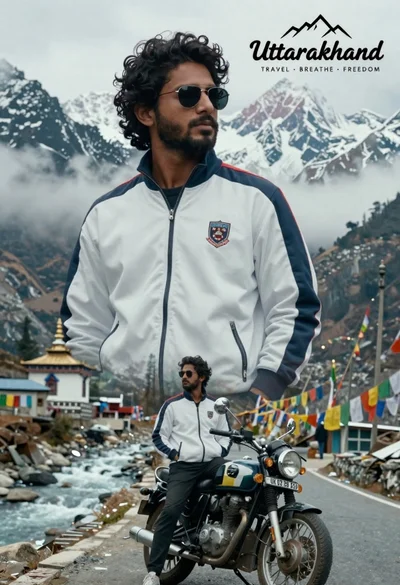
Cinematic travel poster of man on motorcycle against himalayan mountains
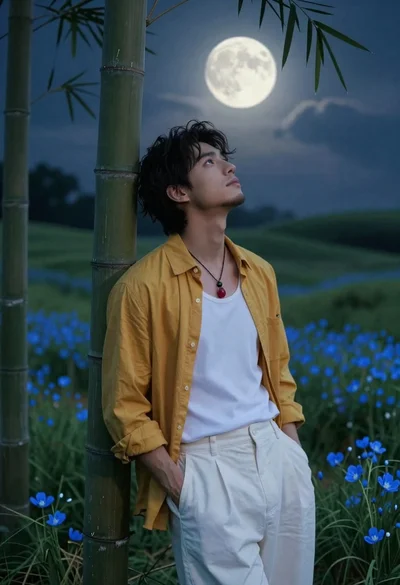
Handsome young man in yellow shirt leaning against bamboo under full moon
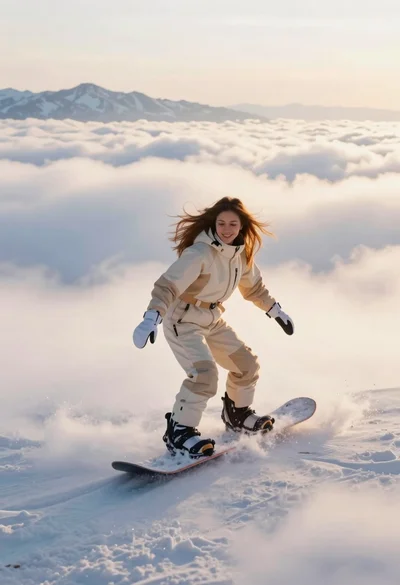
Joyful woman snowboarding above sea of clouds with distant mountains
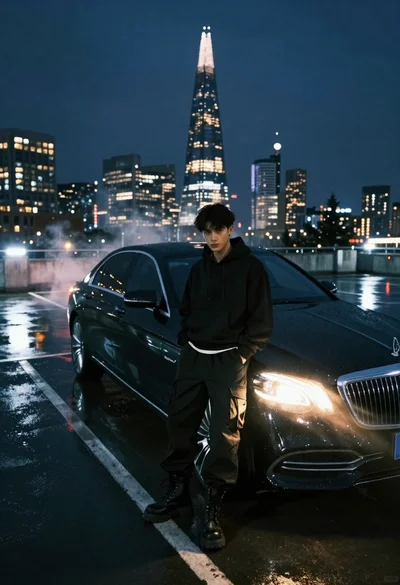
Young man in black outfit by luxury sedan on wet rooftop at
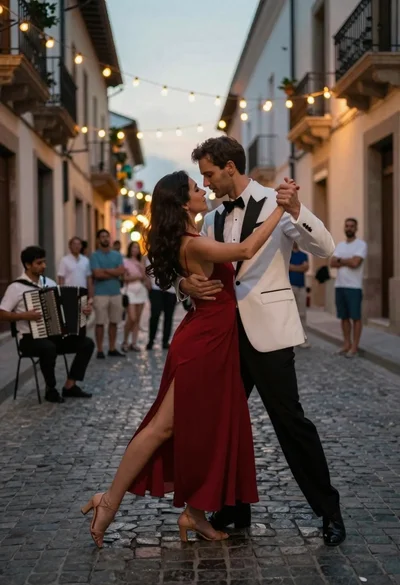
Romantic couple dancing intimately on cobblestone street at dusk
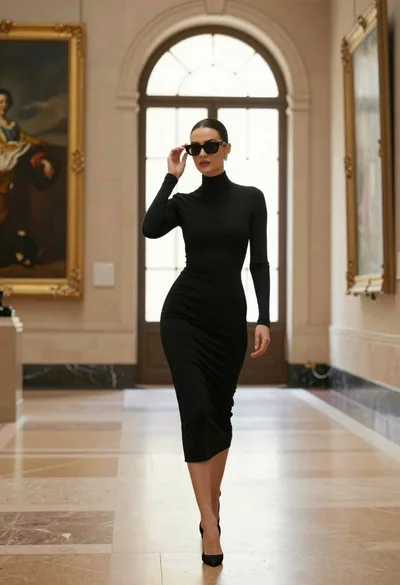
Confident woman in black dress walks through elegant museum hallway adjusting sunglasses
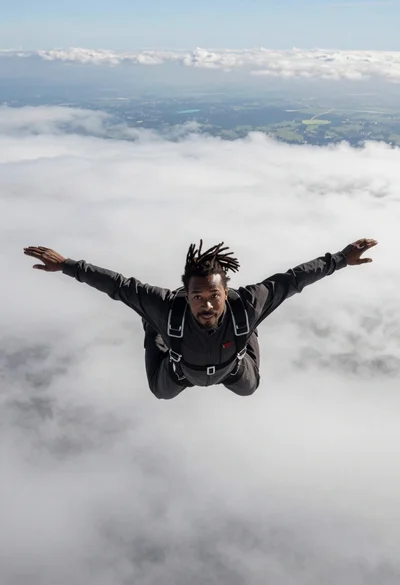
Black man with dreadlocks freefalling through white clouds in black jumpsuit