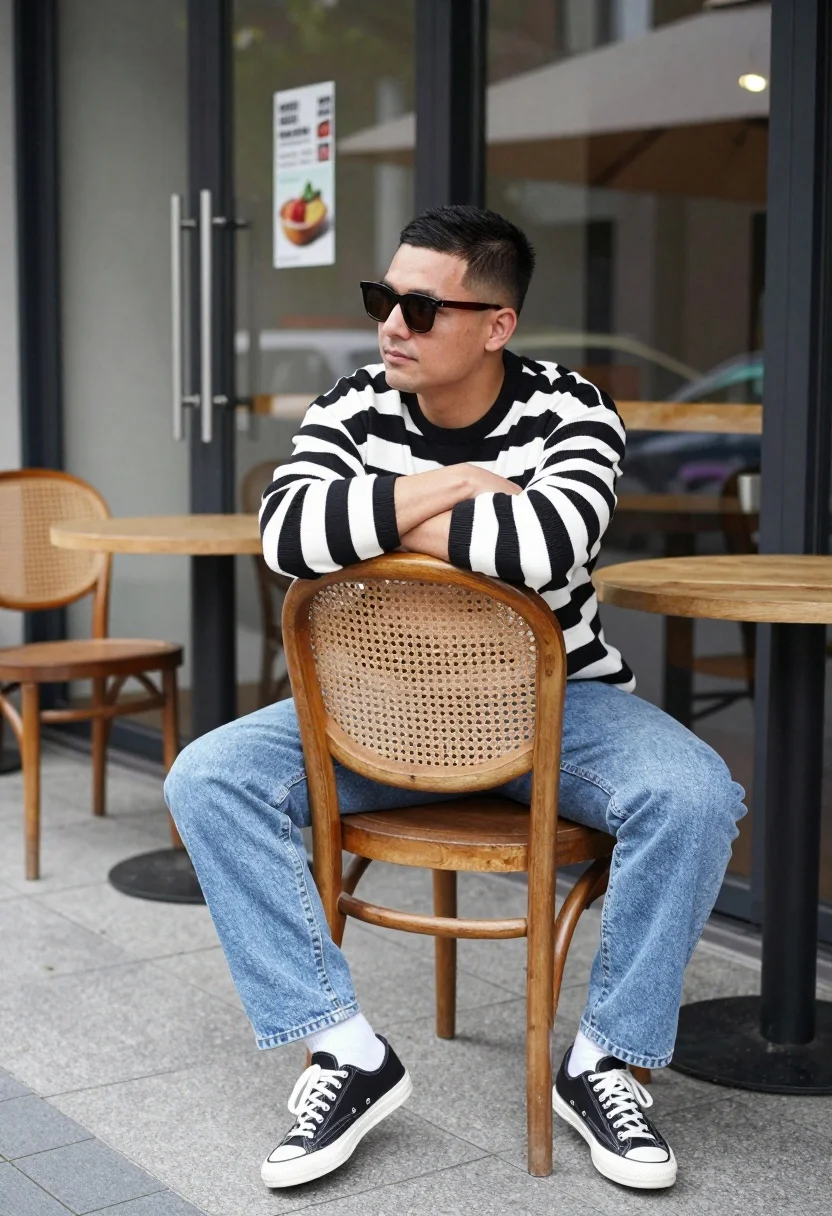
Man sitting casually on wooden chair outside glass cafe patio area
Prompt
A man sits casually on a wooden chair with cane backrest outside a glass-fronted cafe.

Subject: A man wearing dark sunglasses and a black and white horizontally striped sweater.

Clothing: He wears light blue jeans, white socks, and black and white sneakers.

Action: He leans forward with his arms crossed over the top of the chair back, looking off to the side in a relaxed pose.

Environment: The setting is an outdoor patio area paved with grey tiles, featuring wooden tables and chairs. A large glass storefront with metal handles and posters is visible in the background.

Camera: The shot is taken from a low angle looking up at the subject, emphasizing his seated posture against the building facade.

Lighting: Natural daylight illuminates the scene, creating soft shadows and highlighting the textures of the clothing and furniture.

Objects: A round wooden table stands next to the chair, and another matching chair is partially visible in the background.

Style Details: The image has a candid, lifestyle photography aesthetic with a shallow depth of field that keeps the subject sharp while blurring the background reflections.
Description
This prompt is useful for creating editorial street style features, casual character portraits, and architectural lifestyle blogs. The combination of 'low angle looking up at the subject' and 'shallow depth of field' directs the viewer's focus intensely onto the man while using the blurred background reflections to suggest a busy urban environment without distracting from his pose.
Suggestions
- Change 'dark sunglasses' to 'aviator sunglasses' for a different facial shape.
- Swap 'light blue jeans' for 'khaki chinos' to alter the color palette.
- Adjust 'Natural daylight' to 'overcast daylight' for softer, more uniform shadows.
Category
Tags
CafeCasual WearLow AngleMaleMedium ShotRealisticStreet
Date added
August 5, 2026
Added by
PromptDexter Team
Related Prompts
More prompts with similar categories and tags.
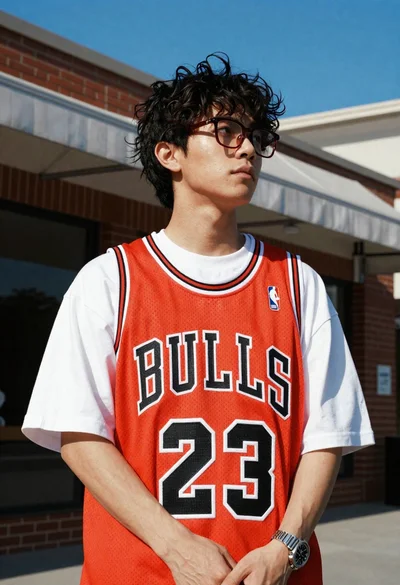
Young man in bulls jersey on brick storefront
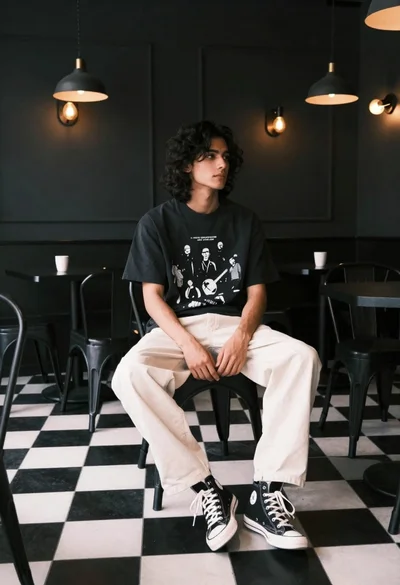
Young man with dark wavy hair sitting in dimly lit cafe interior
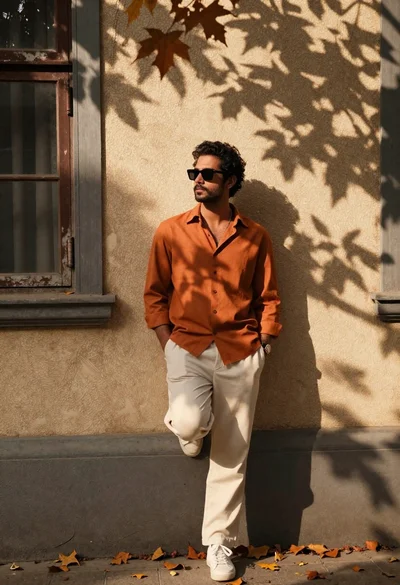
Stylish man in orange shirt leaning against beige wall with autumn leaves
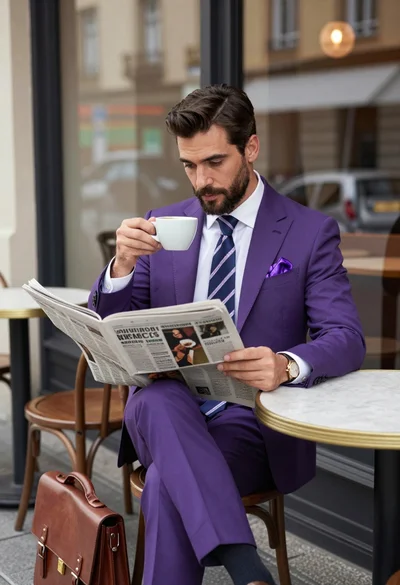
Handsome man in purple suit reading newspaper at outdoor cafe patio
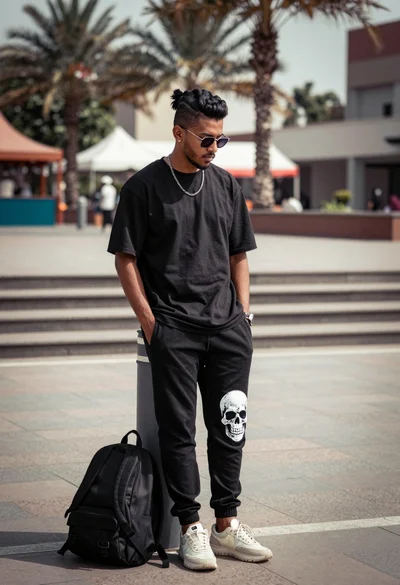
Man leaning against bollard in urban plaza with palm trees background
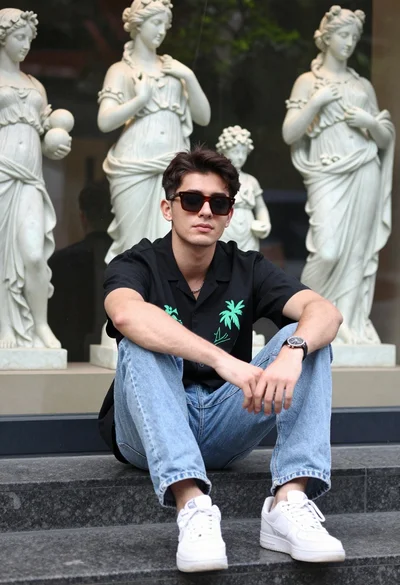
Young man sitting on stone ledge near classical statue display case
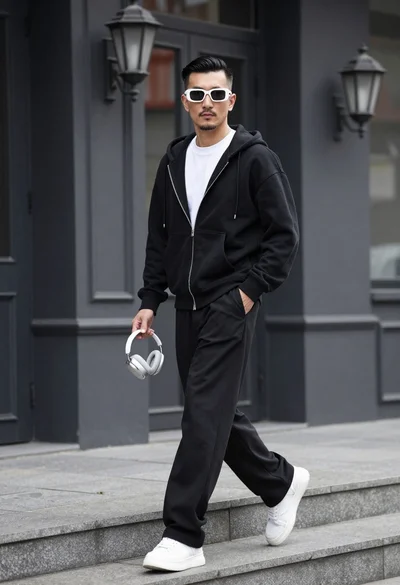
Stylish man walking down stone steps in front of dark building facade
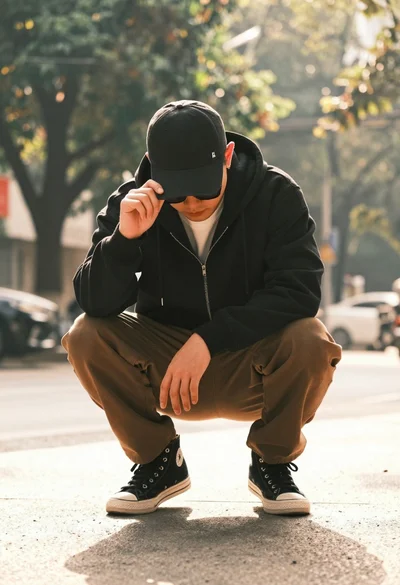
Man crouching low in urban setting adjusting cap with vintage film look
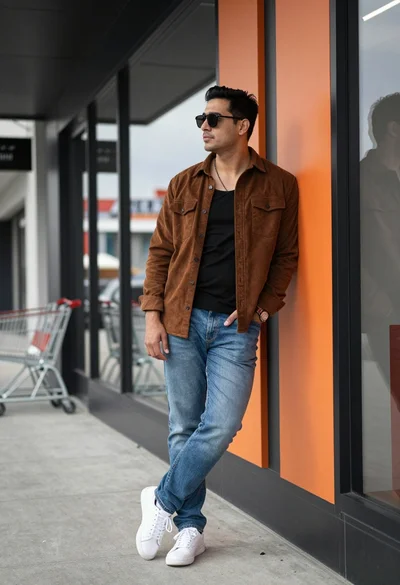
Man in corduroy shirt leaning against modern storefront facade outdoors
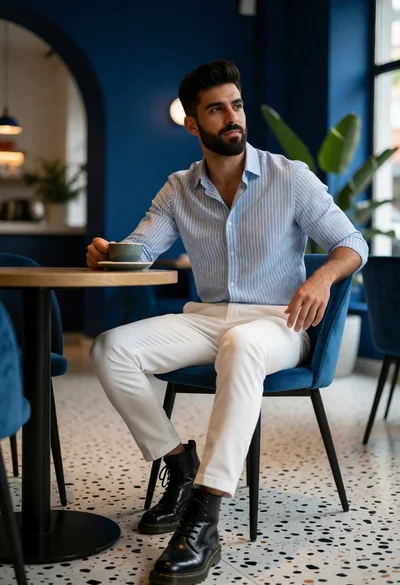
Young man seated at cafe table in stylish interior with natural light