
Hand holding blue coffee cup near woman relaxing at outdoor cafe
Prompt
A first-person perspective shot of a hand holding a light blue coffee cup with frothy foam in the foreground, while a woman relaxes in the background at an outdoor cafe.

Subject: A woman with long dark hair and fair skin is seated outdoors, tilting her head back with eyes closed in a relaxed pose.

Clothing: She wears a white off-the-shoulder top featuring puffy sleeves and ruffled detailing along the neckline.

Action: The woman leans back into a chair with a serene expression, while a hand holds a coffee cup up close to the camera lens.

Environment: The setting is an outdoor patio surrounded by green trees and foliage under a cloudy sky, with green metal cafe furniture visible.

Camera: The image utilizes a shallow depth of field that keeps the foreground coffee cup sharp while blurring the woman and background into soft focus.

Lighting: Natural daylight illuminates the scene evenly, creating a bright and airy atmosphere suitable for an outdoor daytime setting.

Objects: A light blue ceramic mug filled with coffee sits in the immediate foreground on a green table, alongside a second smaller cup and saucer.
Description
This prompt is useful for creating lifestyle blog headers, product placement advertisements for beverages, and intimate cafe ambiance mood boards. The combination of 'shallow depth of field' keeping the foreground coffee cup sharp while blurring the woman and background into soft focus directs the viewer's eye immediately to the object being sold or featured, preventing the subject from overpowering the merchandise.
Suggestions
- Change 'light blue ceramic mug' to 'matte pale blue stoneware' for a more rustic feel.
- Swap 'green metal cafe furniture' for 'dark wood bistro set' to deepen the background tones.
- Adjust 'Natural daylight illuminates the scene evenly' to 'soft overcast light' for less contrast.
Category
Tags
3/4 AngleBlondeCafeCasual WearClose UpFair SkinFemaleMacro ShotNatureOutdoorsPortrait Shot
Date added
June 19, 2026
Added by
PromptDexter Team
Related Prompts
More prompts with similar categories and tags.
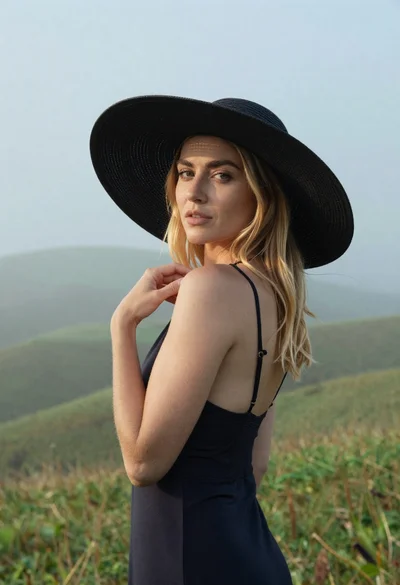
Blonde woman in black hat standing in misty green rolling hills
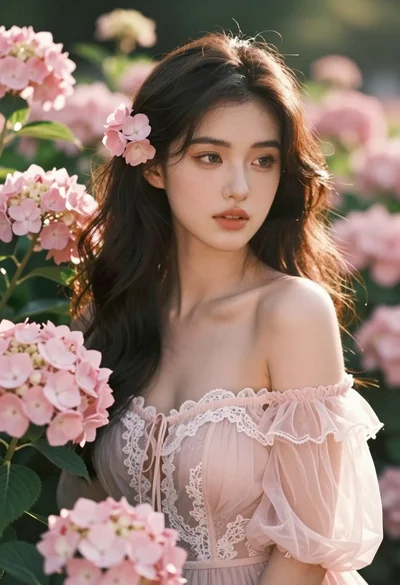
Beautiful woman with dark hair in pale pink flowers garden at golden
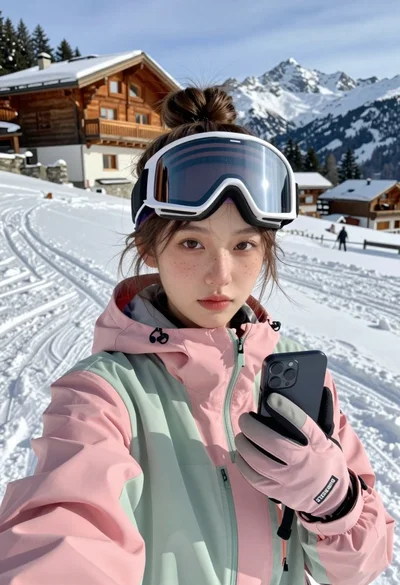
Young woman taking a selfie on snowy mountain slope near chalet
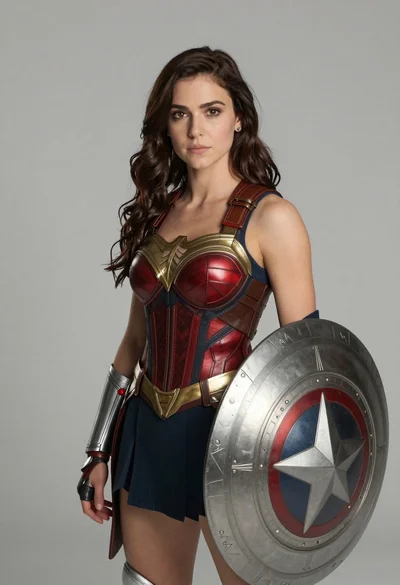
Photorealistic portrait of woman in red gold armor holding shield studio shot
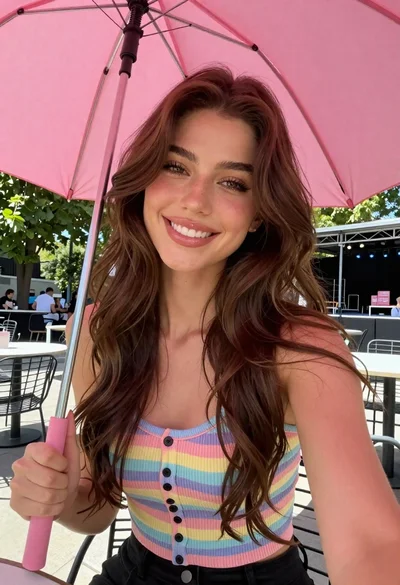
Young woman with brown hair under pink umbrella at outdoor cafe setting
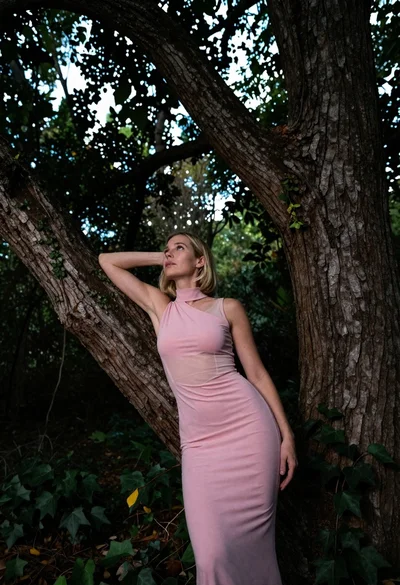
Low angle shot of blonde woman leaning against a tree in lush
Fair skinned woman taking a high angle selfie on green lawn

Young woman in olive saree leaning on railing outdoors during golden hour
Young woman with dark hair at wooden table in open air setting
Close up selfie portrait of woman with brown hair outdoors