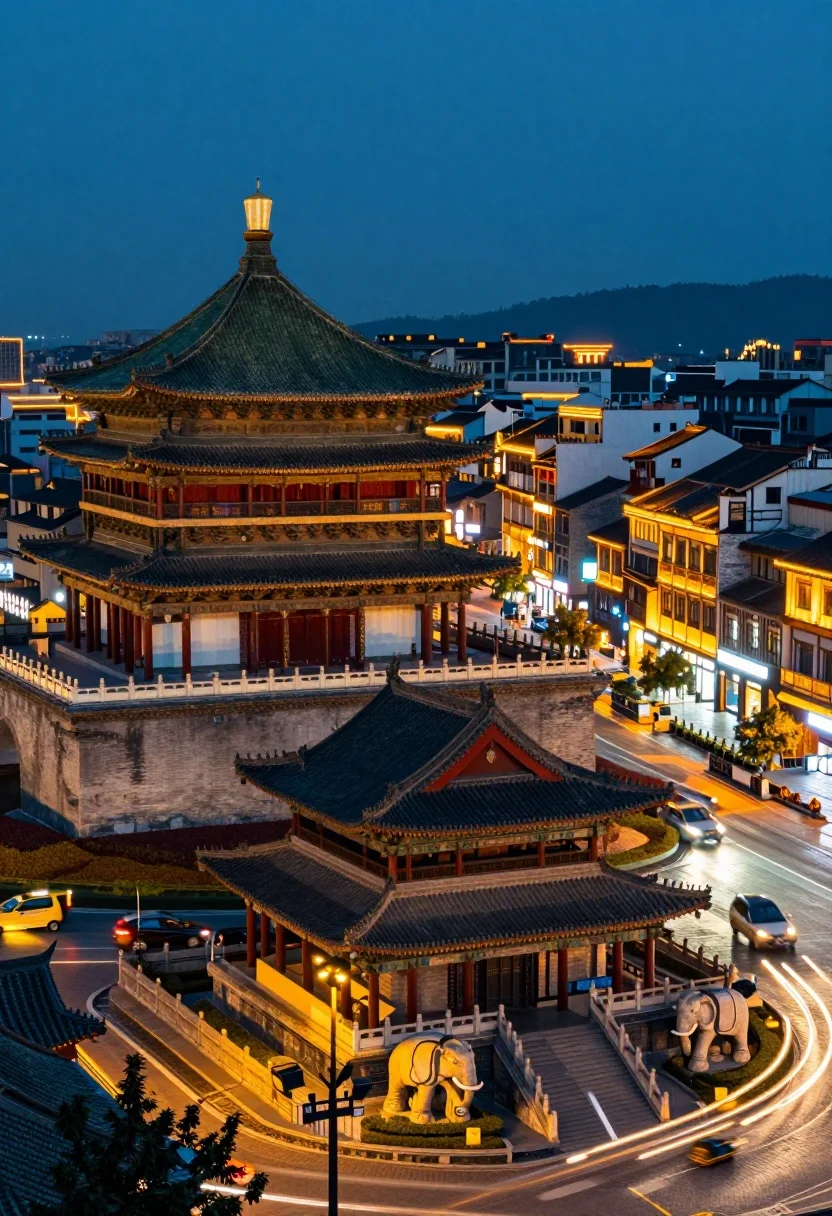
High angle view of historic city square pagoda temples at twilight
Prompt
A high-angle night view of a historic city square featuring traditional multi-tiered pagoda-style temples with dark tiled roofs and stone staircases flanked by elephant statues, surrounded by warmly lit buildings and glowing streetlights against a deep blue twilight sky.

Subject: A majestic multi-tiered pagoda temple with dark greenish-blue roofing, red-painted stone base, and intricate wooden pillars stands prominently on the left, while another smaller traditional structure with a steep tiled roof occupies the foreground.

Action: Long exposure light trails from moving vehicles create streaks of orange and white across the cobblestone streets below.

Environment: The scene is set in a bustling urban square at dusk, surrounded by multi-story buildings with illuminated windows, balconies, and signage, with distant hills faintly visible under the deep blue sky.

Camera: High-angle wide shot capturing the architectural hierarchy and depth of the cityscape, emphasizing the scale of the temples against the sprawling urban background.

Lighting: Warm golden artificial lights from streetlamps and building facades contrast sharply with the cool blue ambient light of the evening sky, creating a dramatic interplay of color and shadow.

Style Details: Cinematic long-exposure photography with vibrant color grading, enhanced contrast between warm interiors and cool exteriors, and subtle motion blur effects for dynamic urban atmosphere.
Description
This prompt is useful for creating cinematic travel posters, architectural visualization concept art, and moody editorial spreads about global cityscapes. The combination of 'warm golden artificial lights' contrasting with the 'deep blue twilight sky' establishes a dramatic color palette that prevents the scene from looking flat, while the 'long exposure light trails' add necessary dynamic movement to an otherwise static architectural composition.
Suggestions
- Change 'dark greenish-blue roofing' to 'verdigris copper roofing' for more aged patina.
- Swap 'cobblestone streets' for 'wet asphalt' to enhance reflections.
- Adjust 'deep blue twilight sky' to 'indigo pre-dawn sky' for a cooler overall mood.
Category
Tags
High AngleRealisticRooftopStreetUrbanVehicleWide Shot
Date added
August 5, 2026
Added by
PromptDexter Team
Related Prompts
More prompts with similar categories and tags.
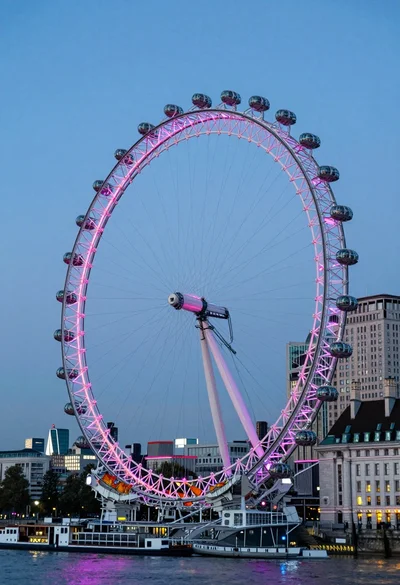
Wide view of london eye ferris wheel against twilight blue sky backdrop
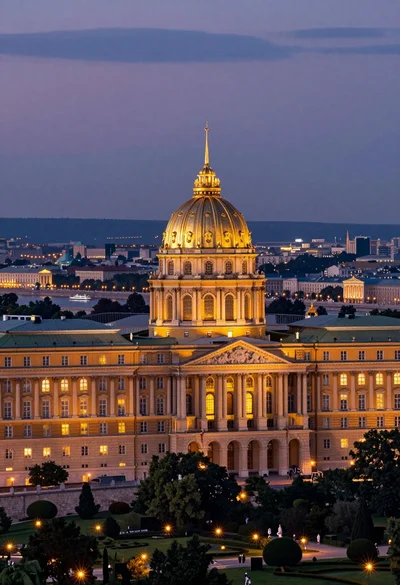
Majestic golden domed palace overlooking sprawling cityscape at twilight
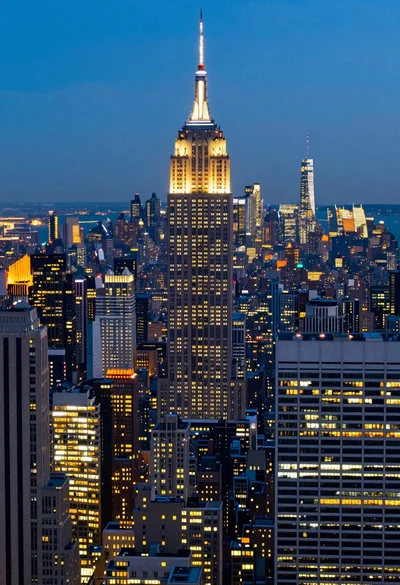
High angle aerial view of new york city skyline at twilight featuring
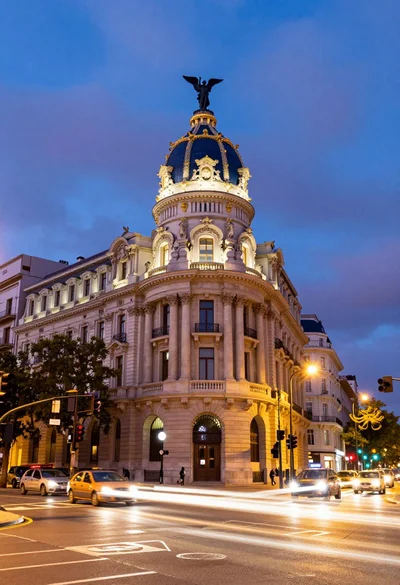
Majestic cityscape at twilight featuring ornate historic building with blue dome
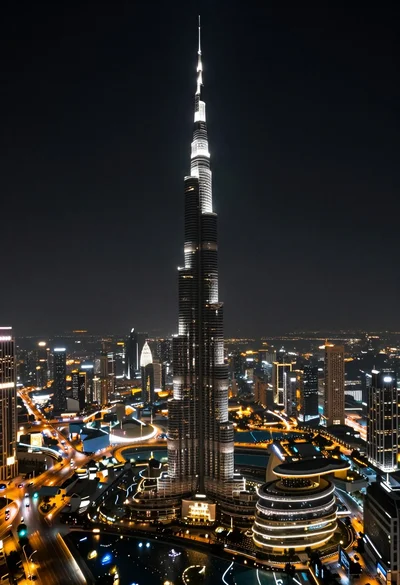
High angle aerial view of burj khalifa towering over illuminated cityscape at
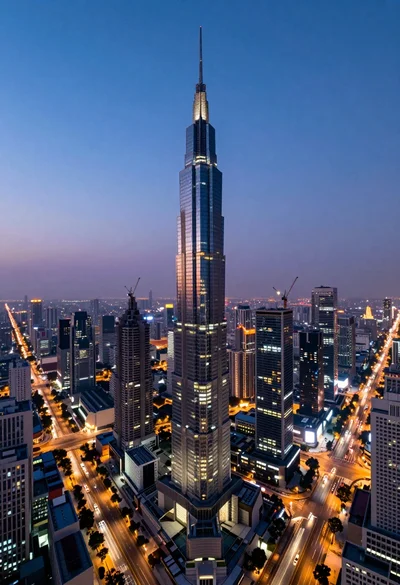
Panoramic view of futuristic metropolis dominated by tall spiraling skyscraper at dusk
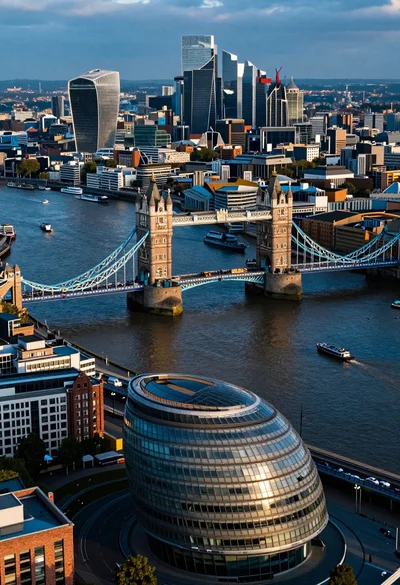
Aerial view of london twilight showing tower bridge city hall and canary
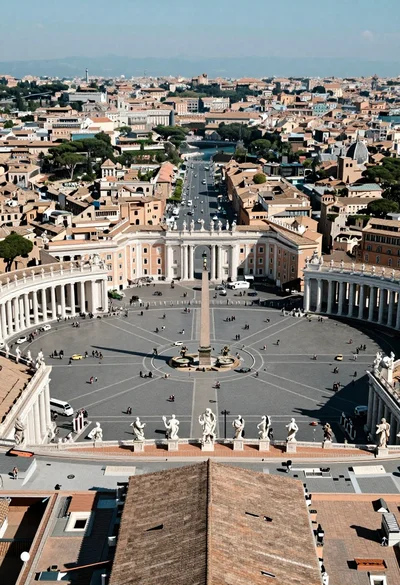
High angle aerial view of st peters square in vatican city rome
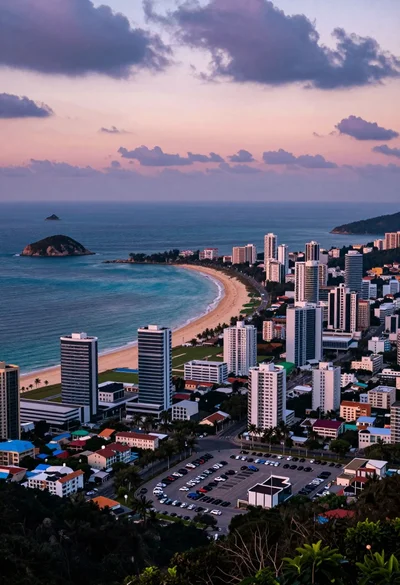
Aerial view of coastal city beach under dramatic twilight sky
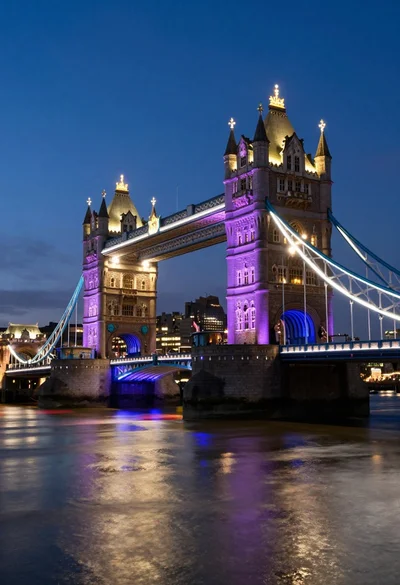
Wide view of tower bridge at twilight with colorful lights and river