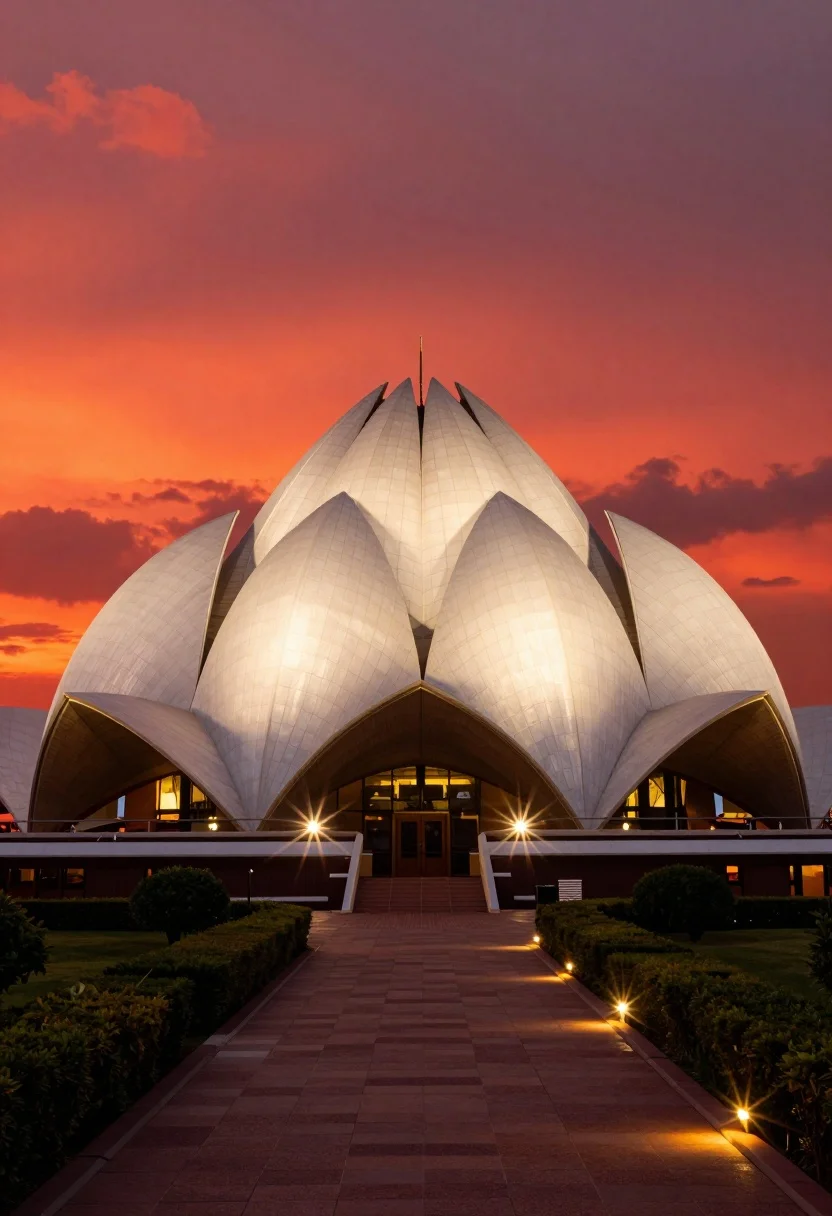
Majestic white lotus temple illuminated against dramatic red orange twilight sky
Prompt
A majestic white lotus-shaped temple illuminated against a dramatic red and orange twilight sky.

Subject: A grand architectural structure resembling a blooming lotus flower with multiple large white petals made of glass panels, glowing from within.

Action: The scene is static with no visible movement, though the warm lighting suggests an evening atmosphere.

Environment: A paved pathway leads directly toward the temple entrance, flanked by manicured green hedges and bushes in the foreground, with a darkened lower structure forming the base of the building.

Camera: Low angle perspective looking up at the towering petals, emphasizing the scale of the architecture, centered composition framing the path leading to the main entrance.

Lighting: Intense warm artificial lighting emanating from within the petals and along the walkway, creating bright starburst lens flares, contrasting sharply with the deep red ambient sky and dark foreground shadows.

Style Details: High contrast photography with a cinematic color palette featuring saturated reds and oranges, sharp architectural lines, and a polished, almost surreal visual quality.
Description
This prompt is useful for creating fantasy concept art for video game environments, dramatic album covers, and high-end architectural visualization pieces. The combination of 'intense warm artificial lighting' emanating from the glass panels against a 'dramatic red and orange twilight sky' achieves a highly saturated, almost surreal visual quality that makes the structure appear otherworldly, which is ideal for fantasy settings where natural light sources are insufficient.
Suggestions
- Change 'glass panels' to 'jade-colored stained glass' for a different internal glow.
- Add 'volumetric fog' to enhance the depth between the foreground and temple.
- Swap 'manicured green hedges' for 'dark, overgrown tropical foliage' to increase contrast.
Category
Tags
Low AngleNatureRealisticRooftopWide Shot
Date added
August 5, 2026
Added by
PromptDexter Team
Related Prompts
More prompts with similar categories and tags.
Eiffel tower reflected in still water under a twilight sky at dusk
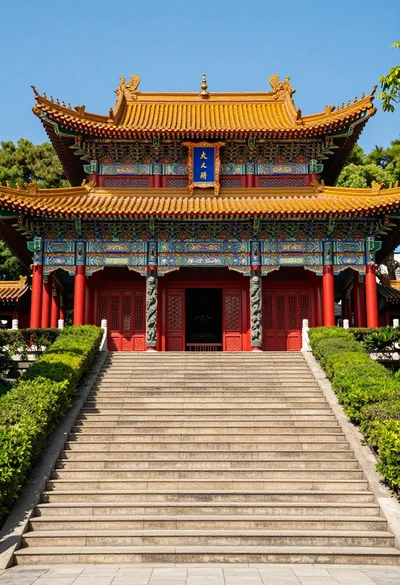
Majestic traditional chinese temple atop grand stone staircase under blue sky
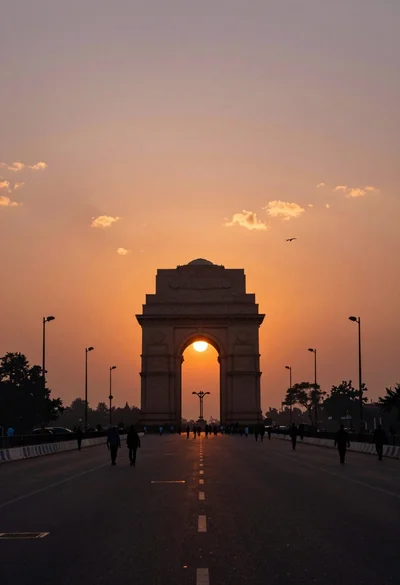
Silhouette of india gate monument at sunset viewed from a low angle
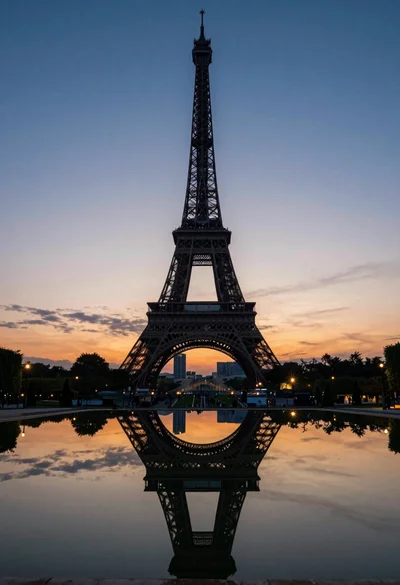
Eiffel tower silhouette reflected in water at twilight against blue orange sky
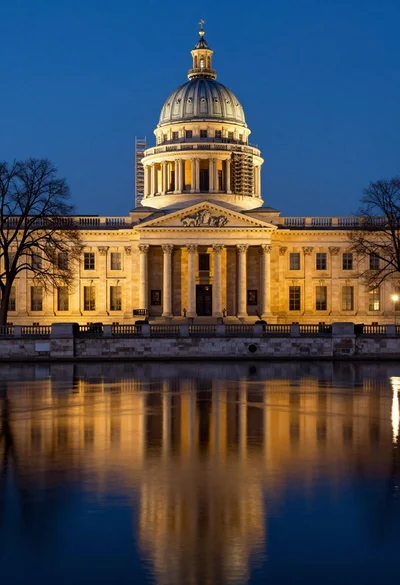
Neoclassical building with dome scaffolding reflecting on calm river water at twilight
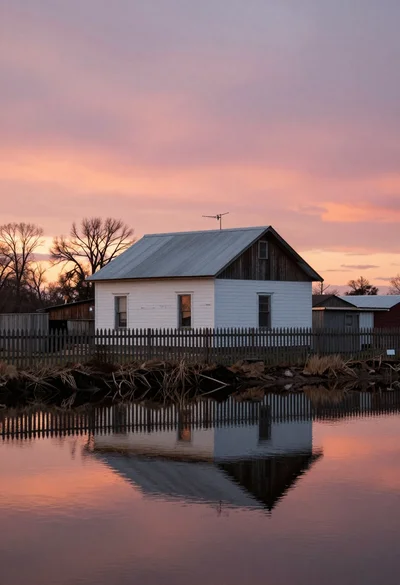
Solitary white house by reflective water under vibrant sunset sky
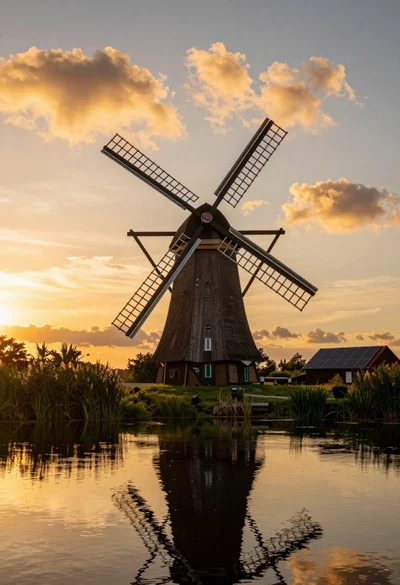
Traditional wooden windmill reflected in calm lake under vibrant sunset sky
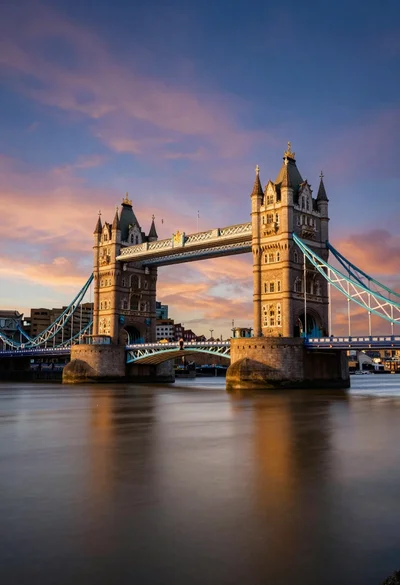
Wide view of tower bridge spanning river at sunset under dramatic colorful
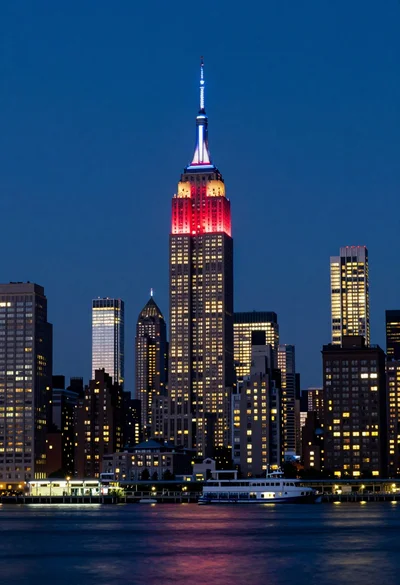
Low angle wide shot of manhattan skyline at night with illuminated empire
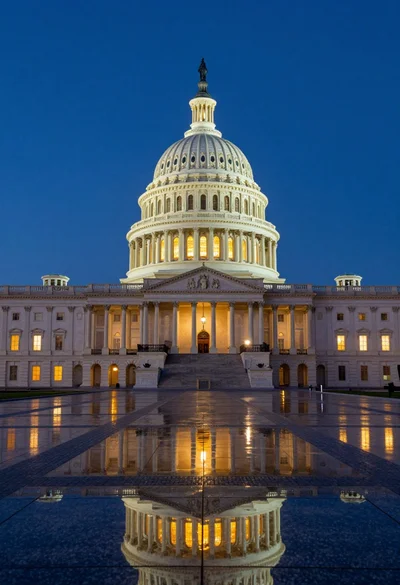
Low angle view of united states capitol dome reflecting in plaza at