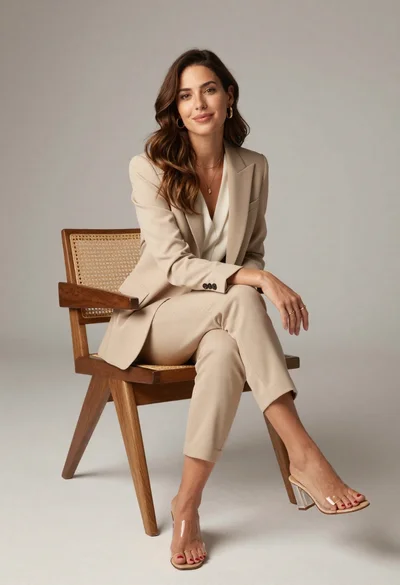
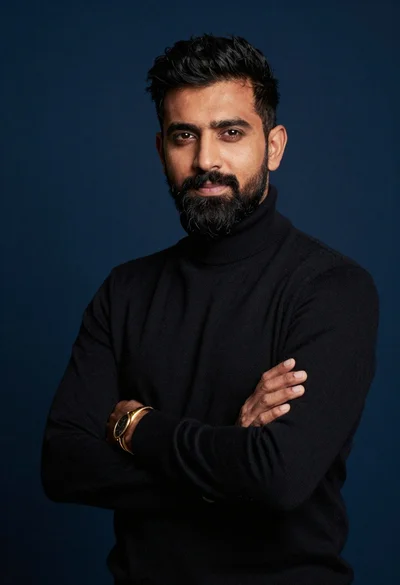
Studio portrait of man in black turtleneck against blue background

Medium close up portrait of woman in navy polo shirt against dark
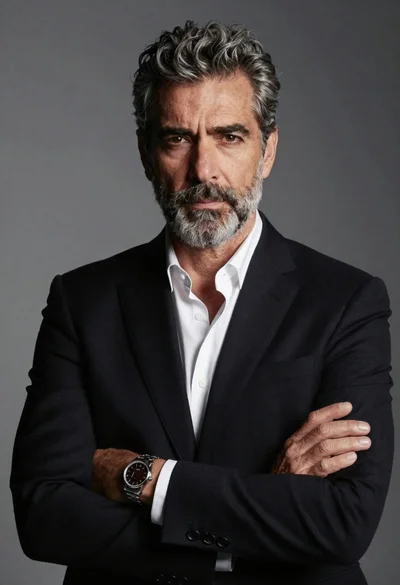
Portrait of middle aged man in black suit jacket
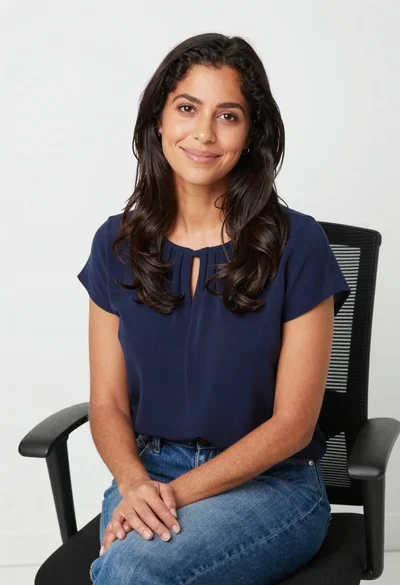
Smiling woman in navy top sitting on black chair against white wall
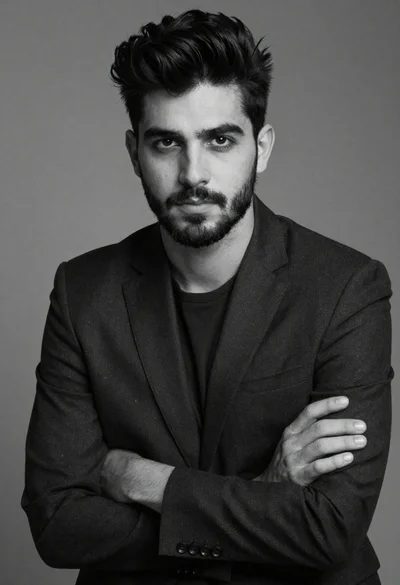
Black and white portrait of a young man in suit
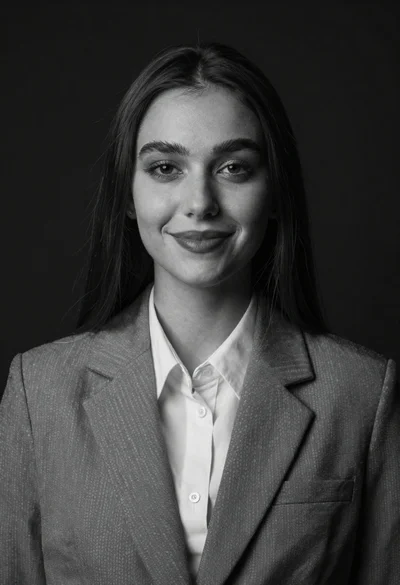
Black and white portrait of woman in blazer
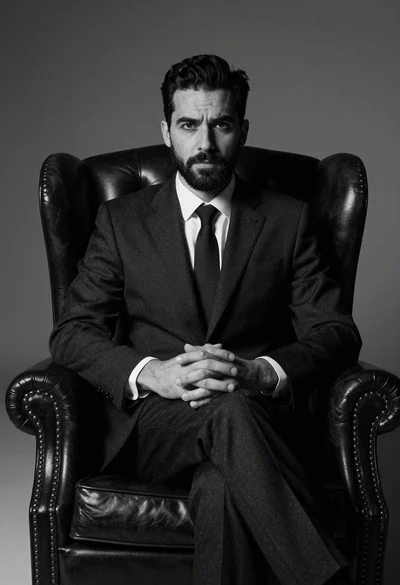
Medium shot of man in dark suit sitting in leather armchair studio
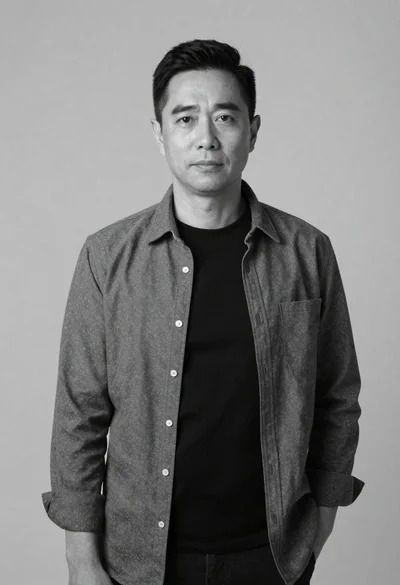
Black and white portrait of man against plain background
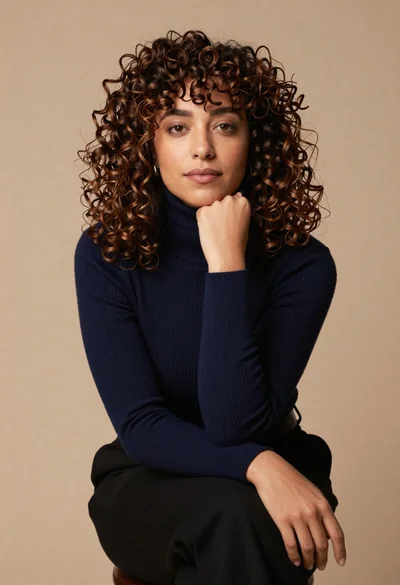
Studio portrait of woman in navy sweater
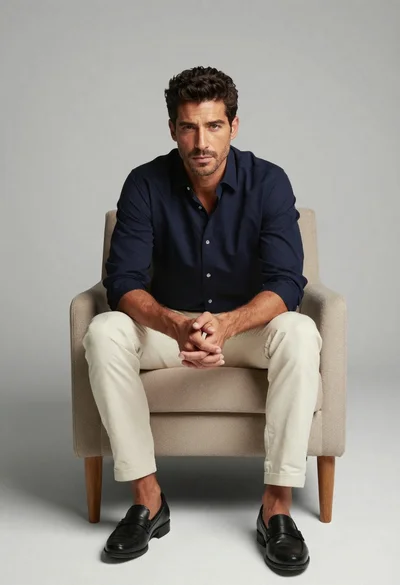
Mature man portrait sitting in beige armchair against gray background

Professional portrait of smiling blonde woman in navy suit sitting in armchair
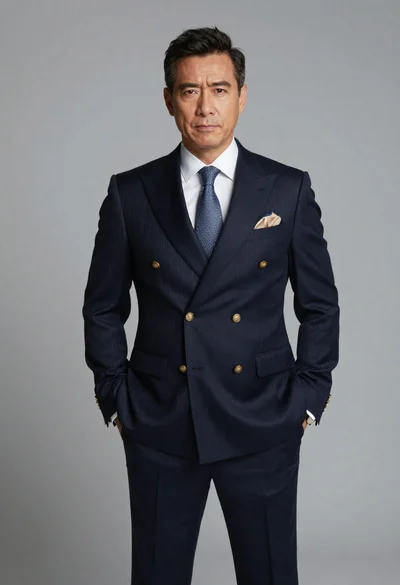
Portrait of a middle aged man in navy pinstripe suit
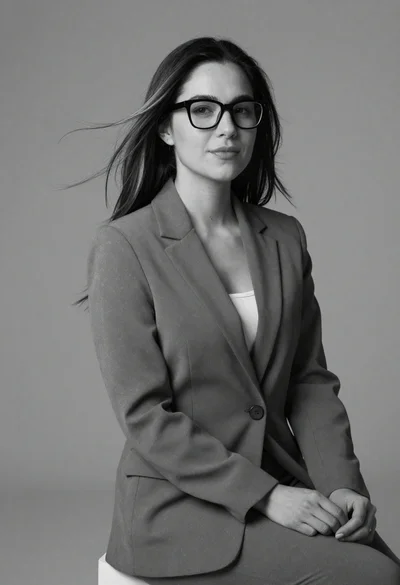
Black and white portrait of woman in business attire
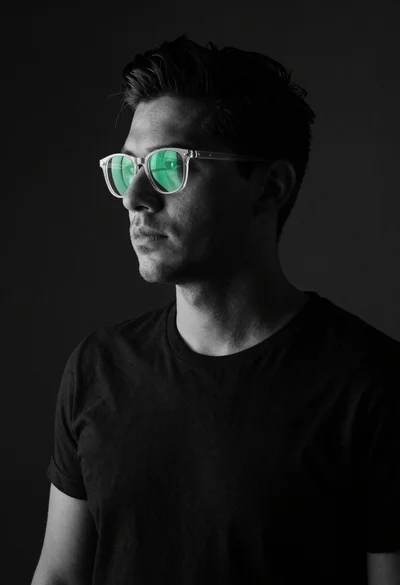
Black and white portrait of stylish man with green glasses
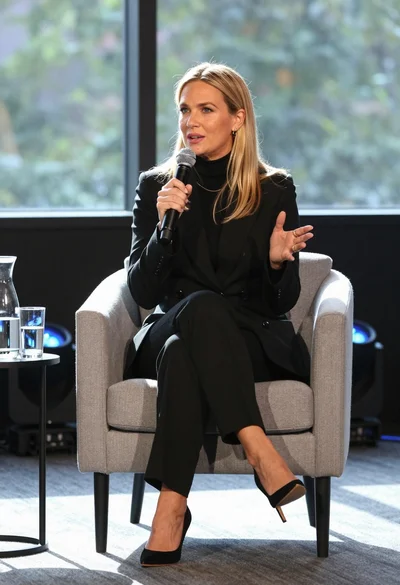
Fair blonde woman in black suit speaking into microphone on stage
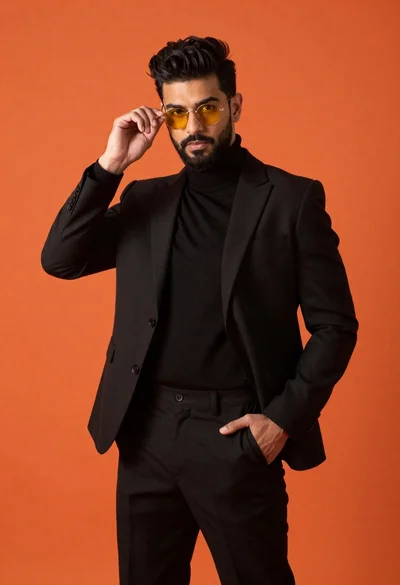
Man in black suit adjusting sunglasses against orange background
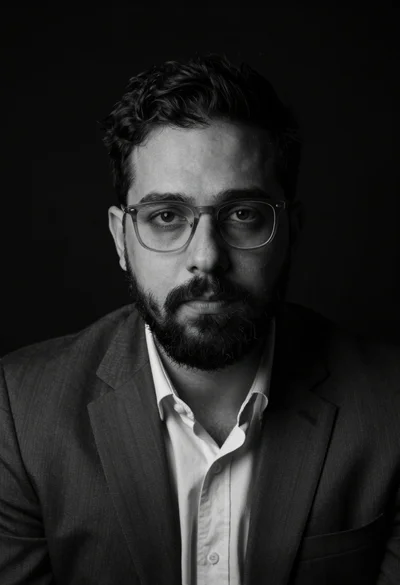
Black and white studio portrait of man with beard wearing dark suit

Professional portrait of man in dark suit jacket against solid black background