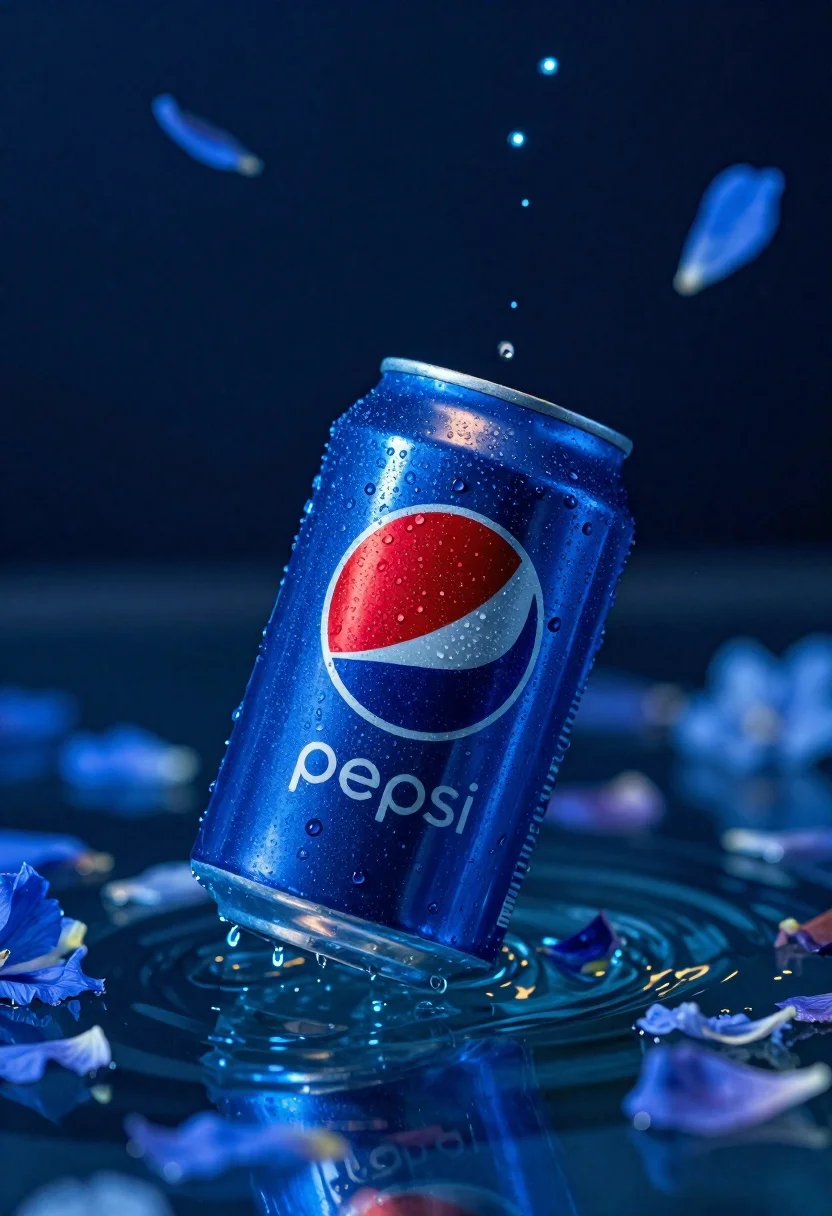
Closeup shot of a chilled pepsi can floating in deep blue water
Prompt
A single Pepsi can floats upright in deep blue water, surrounded by falling flower petals and glowing particles.

Subject: A chilled aluminum soda can with the iconic red, white, and blue circular logo and the word "pepsi" printed below it.

Clothing: The metallic surface of the can is covered in realistic condensation droplets that catch the light.

Action: The can is tilted slightly as if caught mid-fall or floating gently on the water's surface.

Environment: A dark, dreamlike aquatic setting filled with falling blue flower petals and suspended glowing specks against a deep navy background.

Camera: Close-up shot with shallow depth of field that keeps the can sharp while softly blurring the surrounding petals and background elements.

Lighting: Cool blue ambient light reflects off the wet surface of the can, creating bright highlights on the water droplets and enhancing the glossy texture.

Style Details: High-definition commercial photography style with vibrant color grading, enhanced contrast, and a cinematic atmosphere that emphasizes freshness and coolness.
Description
This prompt is useful for creating beverage advertisement mockups, product packaging concept art, and high-end refreshment editorial spreads. The combination of 'cool blue ambient light' reflecting off the 'realistic condensation droplets' ensures the can appears maximally chilled, while the 'shallow depth of field' isolates the subject against the soft blur of petals to draw immediate focus to the product.
Suggestions
- Change 'deep navy background' to 'midnight ocean backdrop' for more drama.
- Swap 'falling flower petals' for 'floating iridescent soap bubbles' to alter the texture.
- Adjust 'Cool blue ambient light' to 'cyan rim lighting' for a sharper edge definition.
Category
Tags
Close UpRealistic
Date added
June 26, 2026
Added by
PromptDexter Team
Related Prompts
More prompts with similar categories and tags.
Black supplement bottle with chromatic aberration in void
Abstract close up of glass vessel against teal background
Two black deodorant bottles wrapped in a flowing black ribbon
Close up product shot of black perfume bottle with gold lettering
Grey and white hiking boot on wet rocky ground
Hyperrealistic close up of orange soda splashing from a floating can
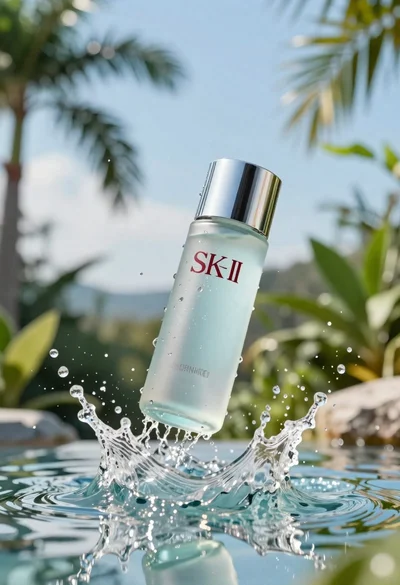
Clear glass skincare bottle suspended in water splash outdoors
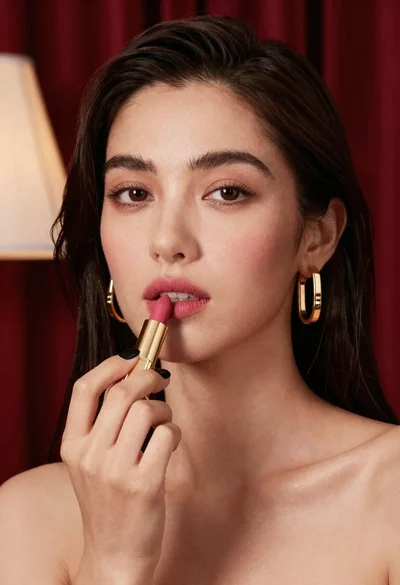
Close up portrait of woman applying pink lipstick against red curtains