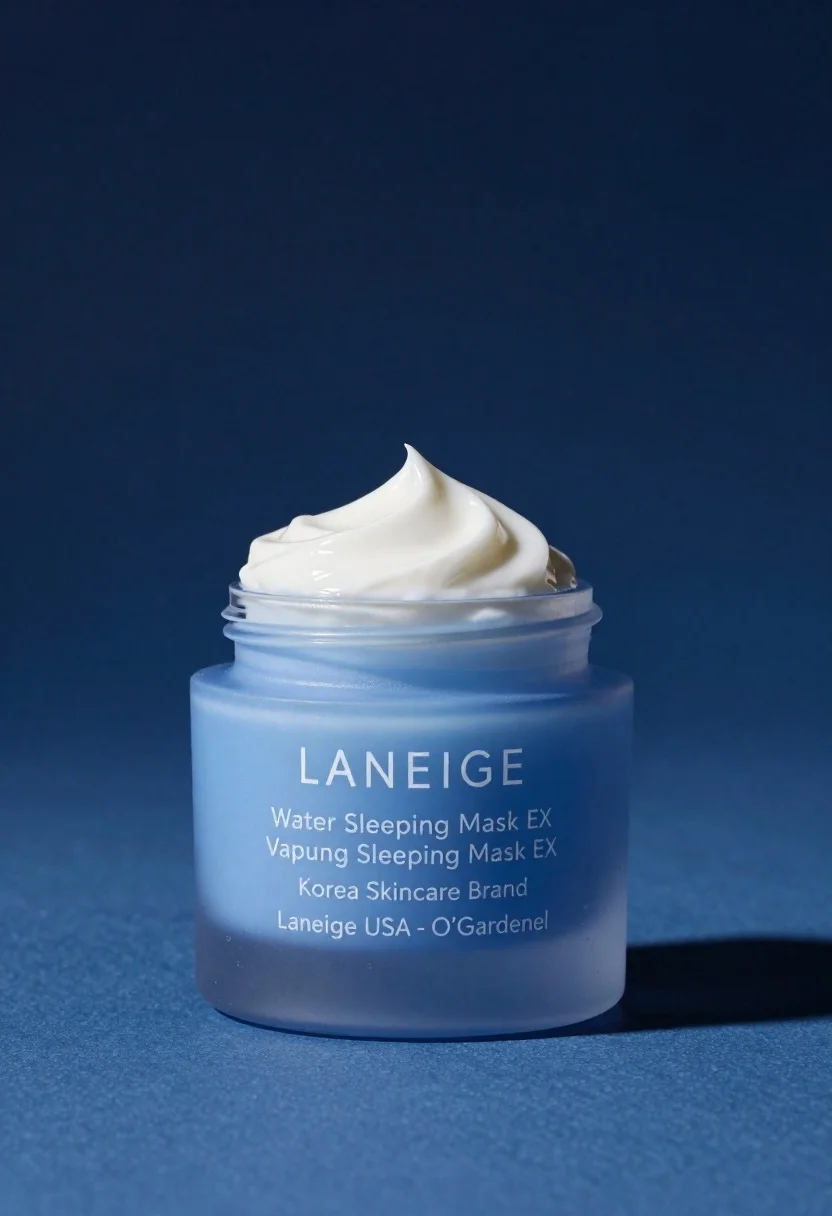
Light blue frosted glass jar of sleeping mask with creamy white swirl
Prompt
A minimalist product shot of a light blue frosted glass jar with a dollop of creamy white sleeping mask swirled on top against a deep blue gradient background.

Subject: A cylindrical frosted glass jar containing a skincare product, featuring a clean, modern design with a smooth, matte finish.

Clothing: Not applicable to the subject.

Action: The jar is stationary, presented in a static studio composition.

Environment: A seamless, deep blue backdrop that transitions from dark navy at the top to a lighter blue near the surface, creating a monochromatic aesthetic.

Camera: Centered framing with a shallow depth of field that keeps the product sharp while softly blurring the background, suggesting a macro lens setup.

Lighting: Soft, directional lighting from the front-left casts gentle highlights on the jar’s curvature and creates a subtle shadow to the right, enhancing three-dimensionality without harsh contrast.
Second

Subject: None.

Objects: A sculpted swirl of thick, creamy white sleeping mask sits atop the open jar, showcasing its texture and consistency.

Interaction: The cream is artfully placed on the rim, implying application or product demonstration.

Text/Graphics: White sans-serif text on the front reads “LANEIGE” at the top, followed by “Water Sleeping Mask EX”, “Vapung Sleeping Mask EX”, “Korea Skincare Brand”, and “Laneige USA - O’Gardenel”.

Style Details: High-end commercial photography with clean lines, cool color grading, smooth bokeh, and a focus on product elegance and purity.
Description
This prompt is useful for creating high-end cosmetic advertisements, e-commerce beauty listings, and spa retail displays requiring a serene aesthetic. The combination of 'light blue frosted glass' and the 'deep blue gradient background' establishes a cool, monochromatic palette that emphasizes product purity, while the 'soft, directional lighting from the front-left' sculpts the jar’s matte finish, preventing it from looking flat against the seamless backdrop.
Suggestions
- Change 'creamy white' to 'ivory' for a warmer mask tone.
- Swap 'deep blue gradient background' for 'slate grey gradient background' for more versatility.
- Adjust 'soft, directional lighting' to 'rim lighting only' to emphasize silhouette.
Category
Tags
Full BodyMacro ShotOutdoorsRealisticStudio
Date added
June 23, 2026
Added by
PromptDexter Team
Related Prompts
More prompts with similar categories and tags.
Pure aloe gel tube on wet reflective surface with water splash
Black monster energy can wrapped in metal chains on reflective floor
Closeup product shot of hand holding frosted glass spray bottle with colorful
Transparent glass perfume bottle with black cap on green grass under pink
Clear glass serum bottle with lemons and water splashes in studio
Glass dropper bottle of red serum surrounded by beetroot slices pomegranate seeds
Neutrogena acne wash bottle suspended in midair with splashing liquid
Yellow energy drink can floating in midair with lime slices and lightning