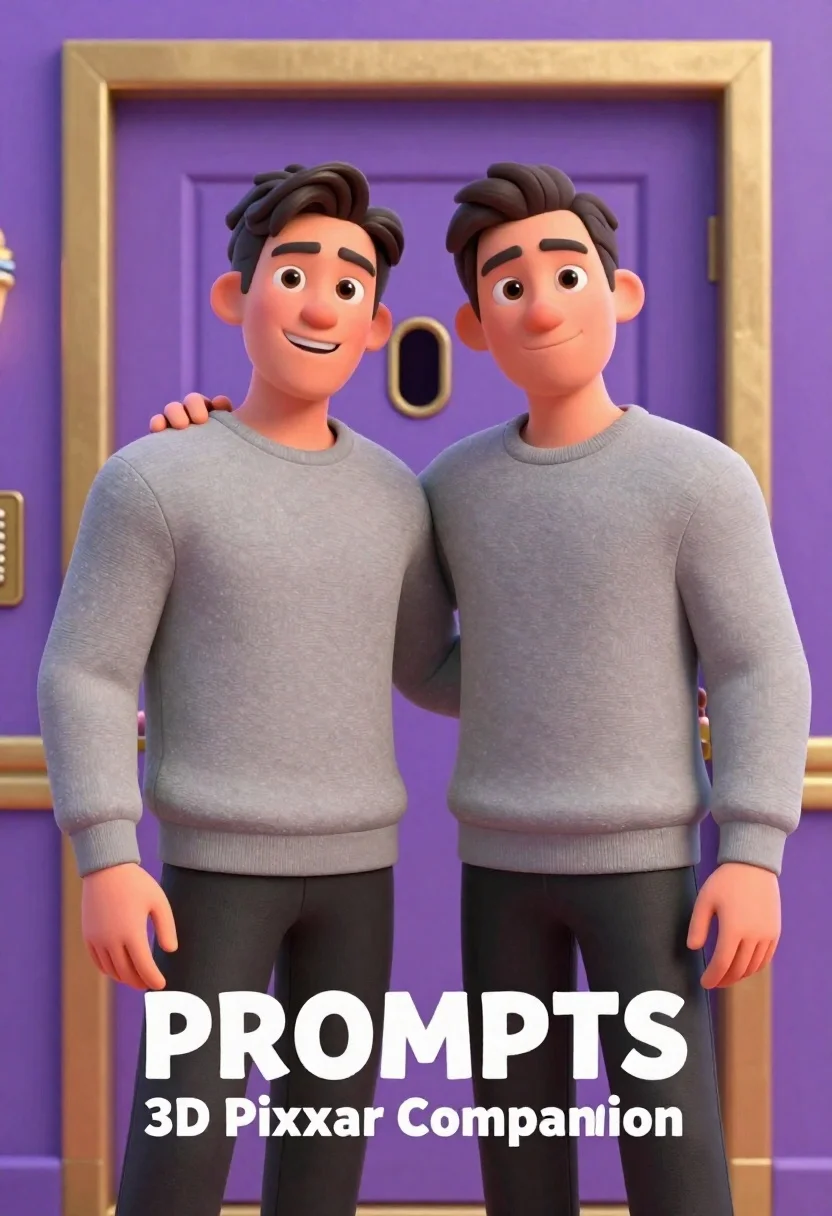
Two men standing side by side in front of a purple door
Prompt
Two men stand side by side in front of a purple door with a gold frame and peephole.

Subject: A man on the left wearing a grey sweatshirt and dark pants stands next to a stylized 3D animated version of himself on the right, who wears an identical outfit.

Clothing: Both subjects wear matching heather grey crewneck sweatshirts and black trousers; the real person has his hand resting on the shoulder of the animated character.

Action: The man on the left smiles broadly at the camera while the animated figure offers a subtle smirk with a slightly raised eyebrow, looking directly forward.

Environment: A purple door serves as the background, featuring a gold rectangular frame and a peephole in the center.

Camera: Eye-level medium shot capturing both figures from the waist up with soft focus on the background elements.

Lighting: Even studio lighting illuminates the scene without harsh shadows, creating a clean and polished look.
Second

Subject: The animated character is rendered in a 3D Pixar-style aesthetic with smooth skin textures and exaggerated facial features.

Objects: A gold intercom panel is visible on the left side of the door frame.

Text/Graphics: Large white text reading "PROMPTS" overlays the lower center of the image, with smaller text below stating "3D Pixar Companion".

Style Details: The image blends photorealism with 3D animation, utilizing soft color grading and a clean digital rendering style.
Description
This prompt is useful for creating promotional character reveals, conceptual branding mockups, or stylized narrative illustrations for tech products. The combination of 'photorealism' blended with a '3D Pixar-style aesthetic' allows the image to feel both grounded and whimsical, while the 'even studio lighting' ensures that the contrasting textures—the real person versus the animated figure—remain clearly visible without distracting shadows.
Suggestions
- Change 'heather grey crewneck sweatshirts' to 'navy blue bomber jackets' for a different color palette.
- Add 'depth of field' to soften the background elements further.
- Replace 'gold intercom panel' with 'chrome keypad' for a more modern feel.
Category
Tags
3dCasual WearFictional CharacterMaleMedium ShotOutdoorsRealisticSide ProfileStudioUniform
Date added
June 26, 2026
Added by
PromptDexter Team
Related Prompts
More prompts with similar categories and tags.
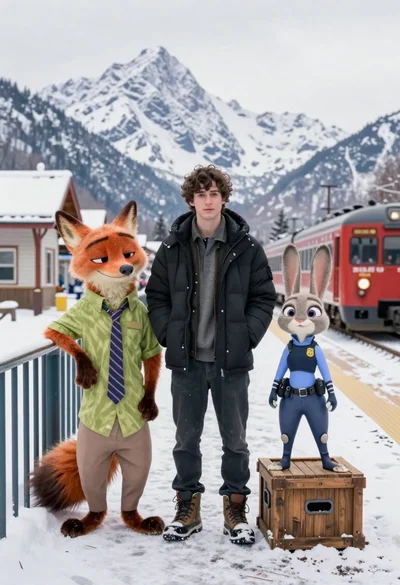
Young man flanked by fox and rabbit at snowy train platform
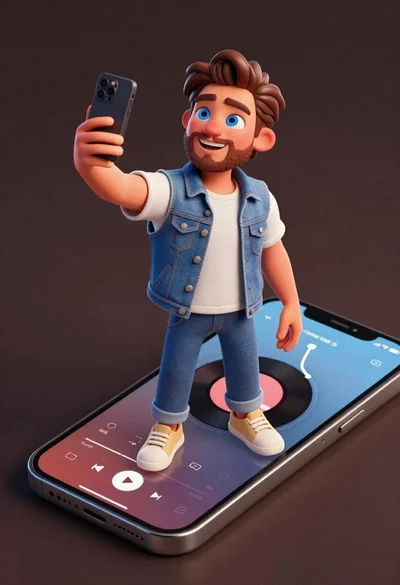
Cheerful young man taking selfie while standing on giant smartphone screen
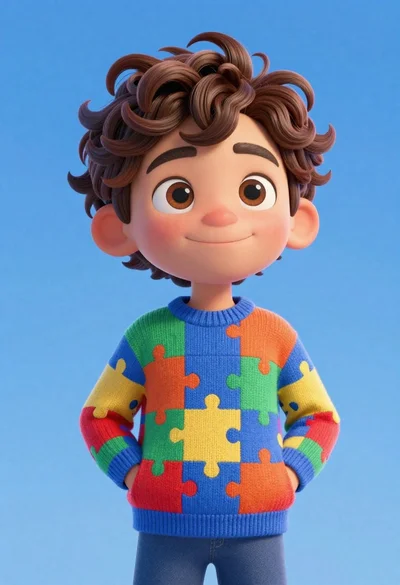
Cheerful young boy in colorful puzzle sweater standing against blue background
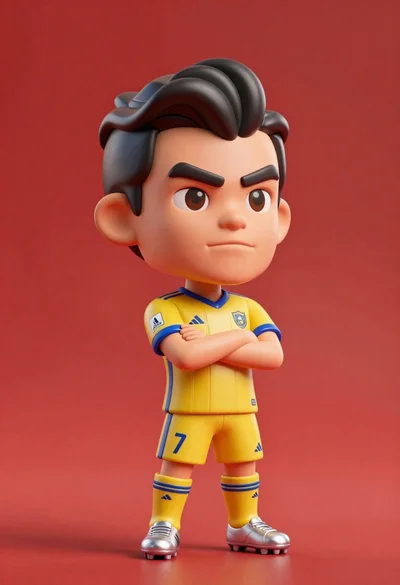
Stylized bobblehead soccer player in yellow jersey standing confidently against red background

Cheerful chibi pirate character standing on treasure chest in studio
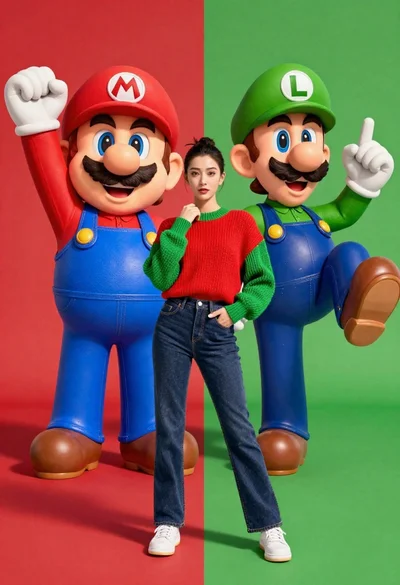
Full body studio shot of woman standing between large mario and luigi
Muscular bowser character standing next to young woman in black sweater
Futuristic android woman in metallic corridor